
TABLE OF CONTENTS
- Manager tag assignment methods.
- Photographer-based assignment: Assigning Photographers to Managers using tags.
- Image-based assignment: Match images to photographers using tags.
- Removing and Changing Tags.
- The EVA manager access level will give managers and supervisors tailored access to images, stats and performance data.
- To control what managers can view in EVA, photographers or images need to be assigned to managers using tags.
- A manager tag assignment method must be chosen before adding tags.
- Learn more about adding users and assigning roles here.
Manager tag assignment methods.
Photographer-based assignment.
- This is the default manager tag assignment method.
- Photographers are assigned by tagging them to a manager.
- This method is best when photographers report to a single manager.
- Managers can view the dashboard info and image gallery from their assigned photographers.
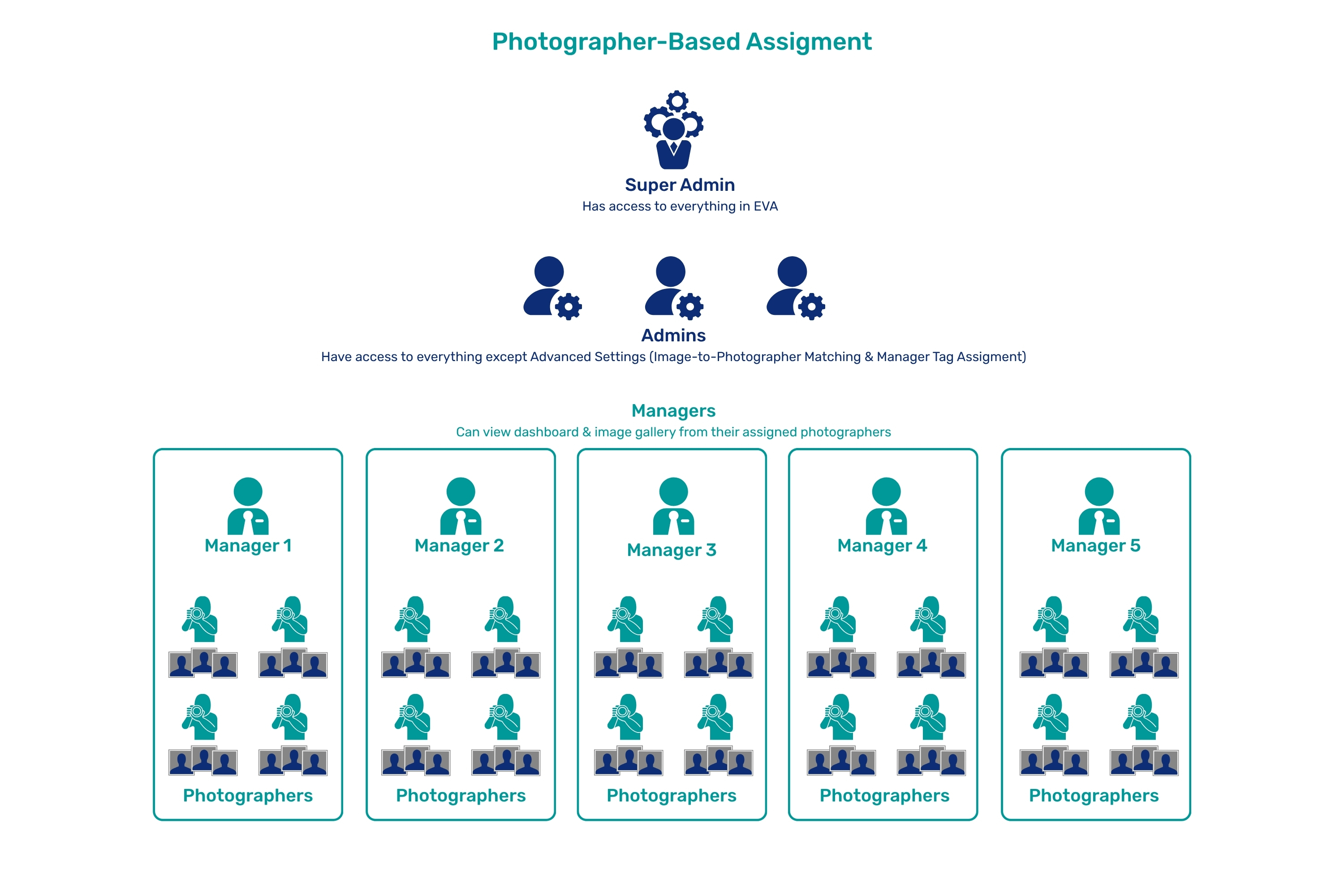
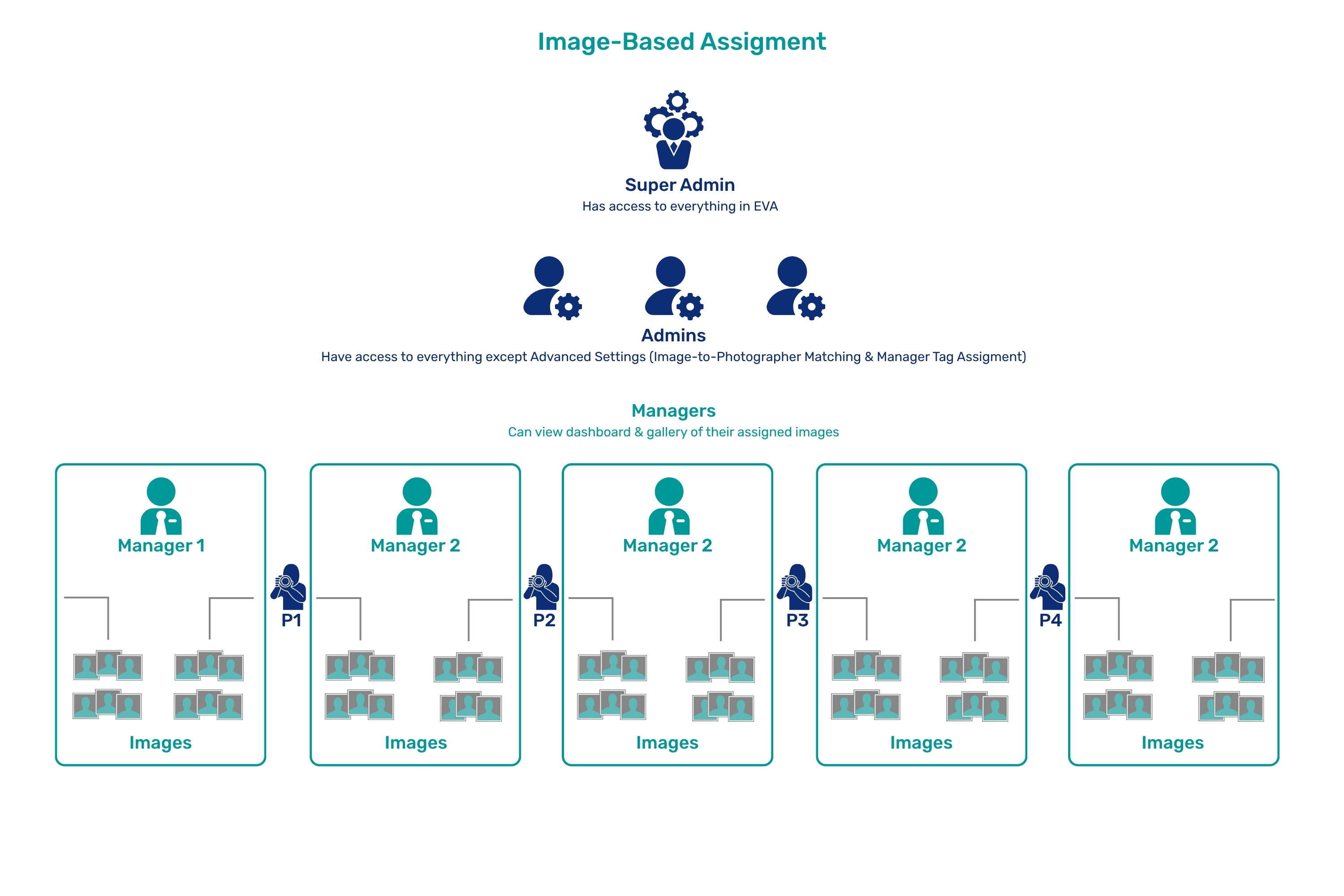
Image-based assignment.
- Images are tagged using a unique identifier in the file name or folder path to assign them to a manager.
- This method is best when photographers are shared between managers.
- Managers can view the dashboard info and gallery of images assigned to them.
Photographer-based assignment: Assigning Photographers to Managers using tags.
Adding tags to managers (Photographer-based assignment).
- Before tagging photographers, tags should be created and assigned to managers.
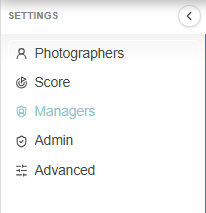
- Go to the manager settings page.
- Click the gear icon at the top of the page

- Click, "Managers" in the menu on the left.
- Click the gear icon at the top of the page
- Click the "Tag" column for a manager you want to create a tag for.
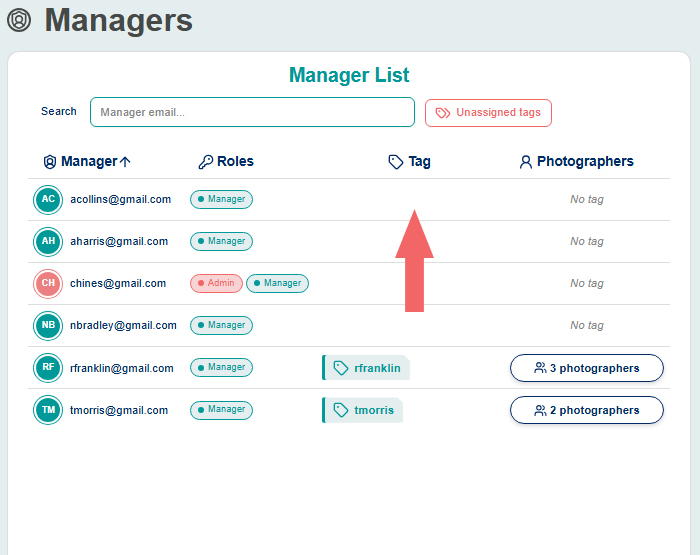
- Type to create a name for the new tag, and then click, "Create..."
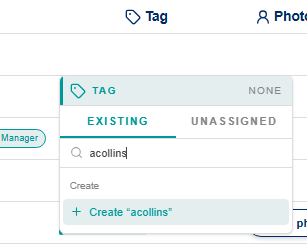
Tagging photographers.
Tagging photographers from the managers settings page.
- Click the "Add" button in the "Photographers" column to add photographers to the new tag, which will assign them to the manager.
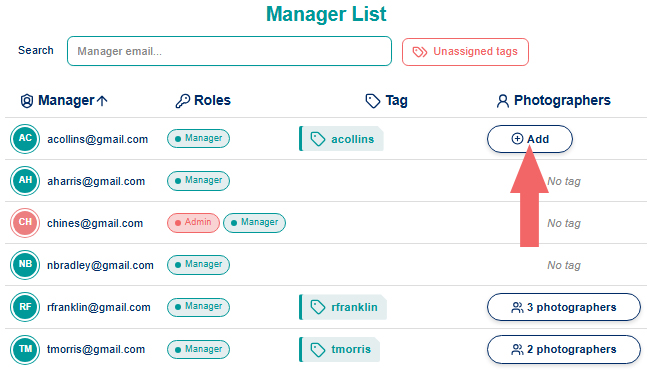
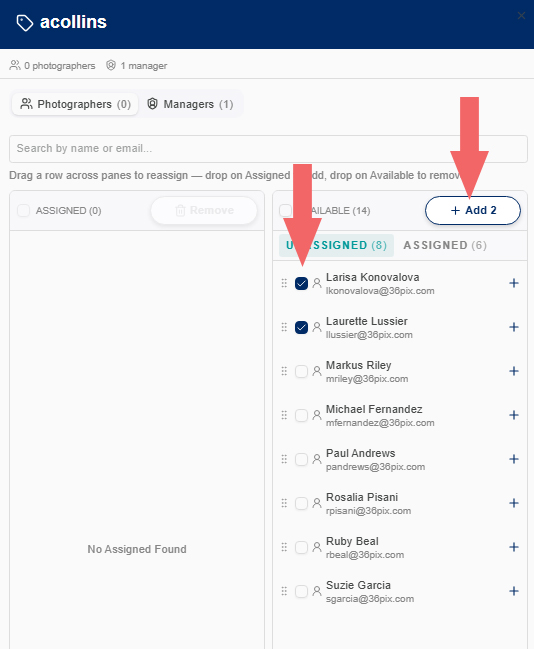
- Click the "+" next to the photographers you want to add, to add them one-by-one, or select multiple, and then click, "Add." You can also drag and drop the photographers to the "Assigned" section on the left.
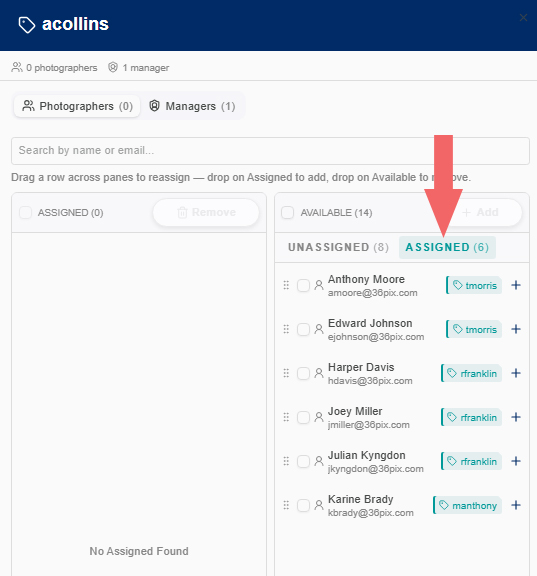
- If you want to add photographers who were already assigned to another manager, click the "Assigned" tab to choose from the already assigned photographers. The photographer will be removed from the existing tag.
- Now, if you go to the photographer settings page, we can see that the photographers that you just assigned all have the new tag you created.
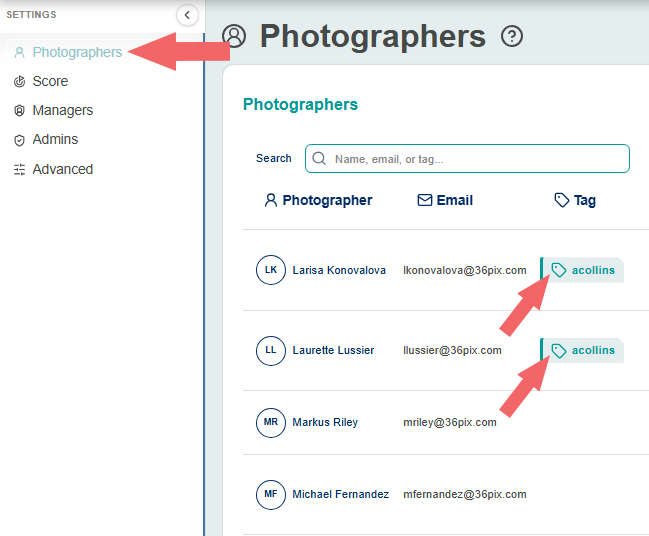
- Click the "Add" button in the "Photographers" column to add photographers to the new tag, which will assign them to the manager.
Tagging photographers from the photographers settings page.
- Click the tag column next to the photographer you want to add a tag to.
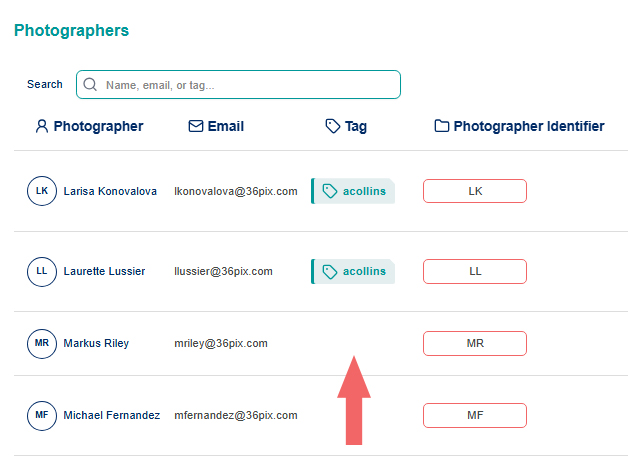
- Select an existing tag from the dropdown, or type to create a name for a new tag and click, "Create..."
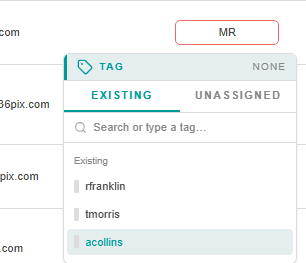
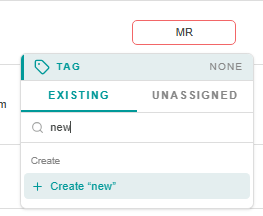
- Click the tag column next to the photographer you want to add a tag to.
Image-based assignment: Match images to photographers using tags.
Setting up image-based tag assignment.
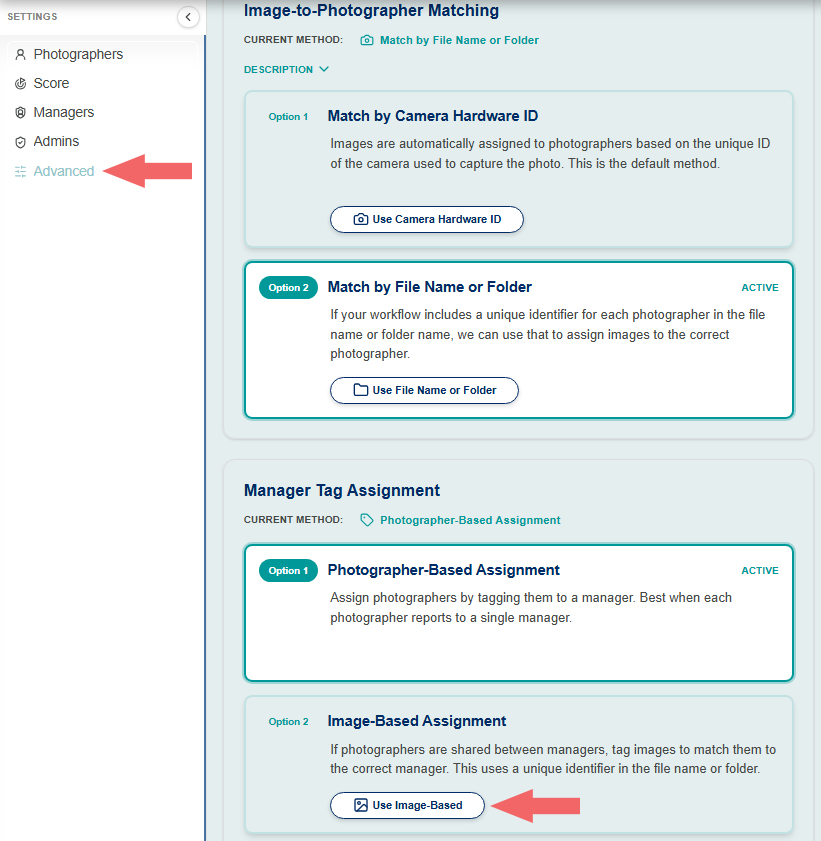
- Go to the advanced settings page and change the manager tag assignment method by clicking, "Use Image-Based." (Note that only Super Admins have access to the advanced settings page.)
- Copy and paste at least two image paths.
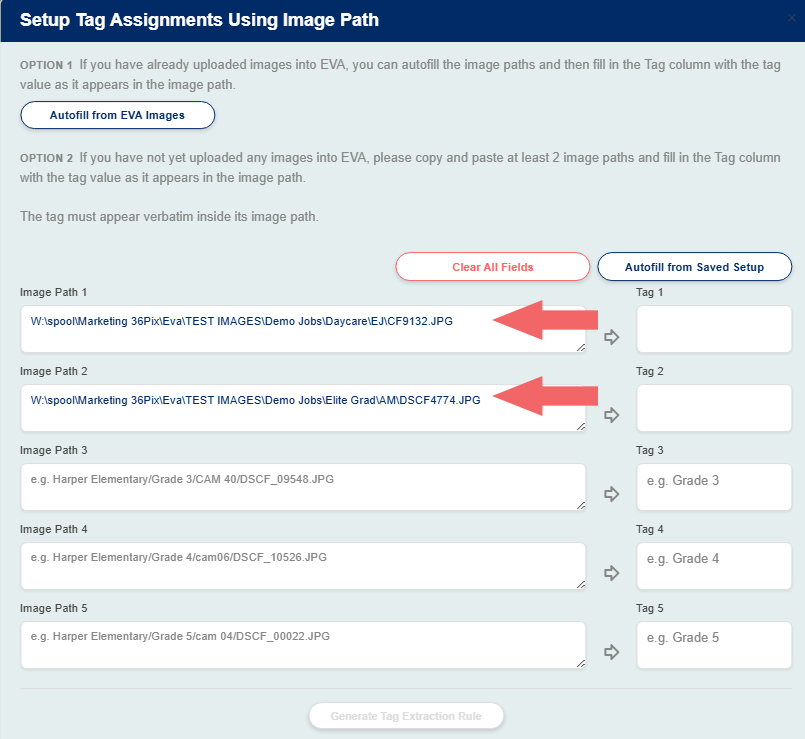
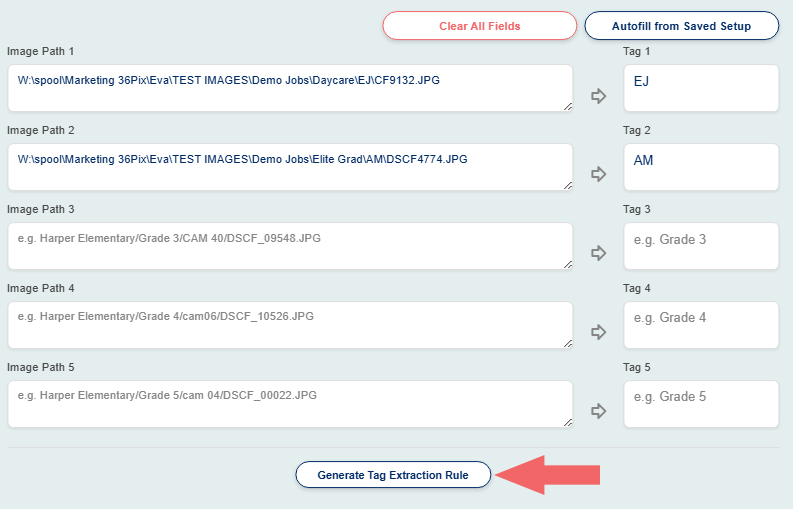
- Fill in the tag column with the tag exactly as it appears in the image path.

- Click, "Generate Tag Extraction Rule."
- Go to the advanced settings page and change the manager tag assignment method by clicking, "Use Image-Based." (Note that only Super Admins have access to the advanced settings page.)
Adding tags to managers (Image-based assignment).
- Go to the manager settings page.
- Click the gear icon at the top of the page
- Click, "Managers" in the menu on the left.
- Click the gear icon at the top of the page
- Click the "Tag" column for a manager you want to create a tag for.
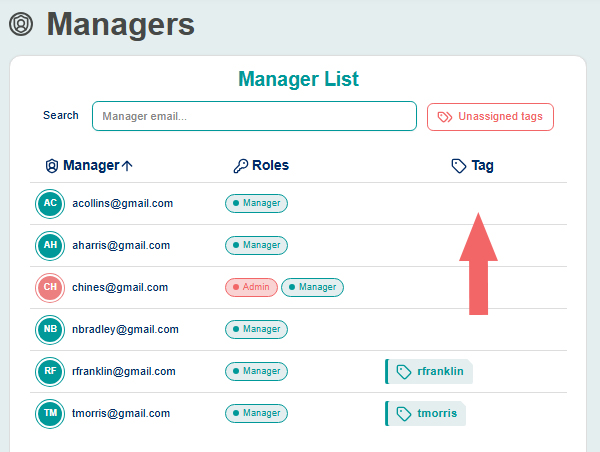
- If images are uploaded into EVA after setting up the image-based tag assignment, the tags will be created automatically and available to choose from the tag dropdown list. You can also type to create a name for a new tag, and then click, "Create..."
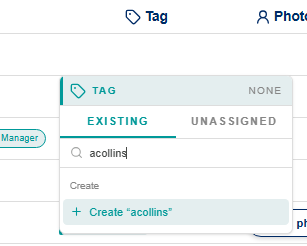
- Go to the manager settings page.
Removing and Changing Tags.
Removing and changing tags for managers.
- Go to the managers settings page.
- Click the gear icon at the top of the page
- Click, "Managers" in the menu on the left.
- Click the gear icon at the top of the page
- Click a tag for a manager you want to remove or change.
- Click, "Clear tag" to remove the tag.
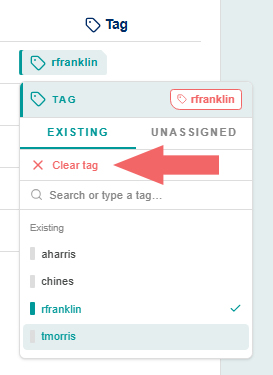
- Select a tag from the dropdown or type to choose a name for a new tag and click, "Create..." to change the tag.
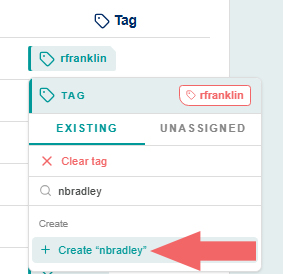
Removing and changing tags for photographers (photographer-based assignment)
- From the managers settings page.
- Click a photographer button in the row of the manager tag you want to remove or add a photographer to.
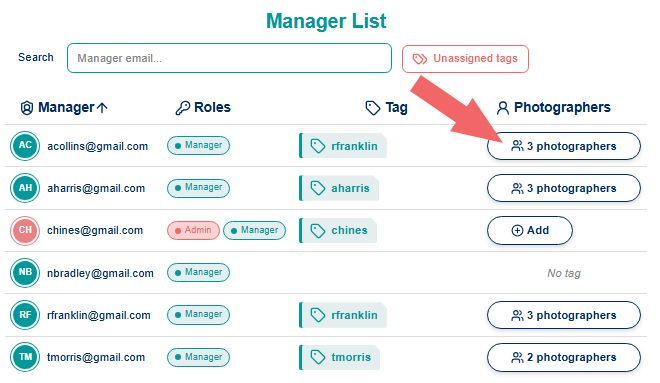
- Click the "-" symbol next to the photographer you want to remove from the tag and un-assign from the manager.
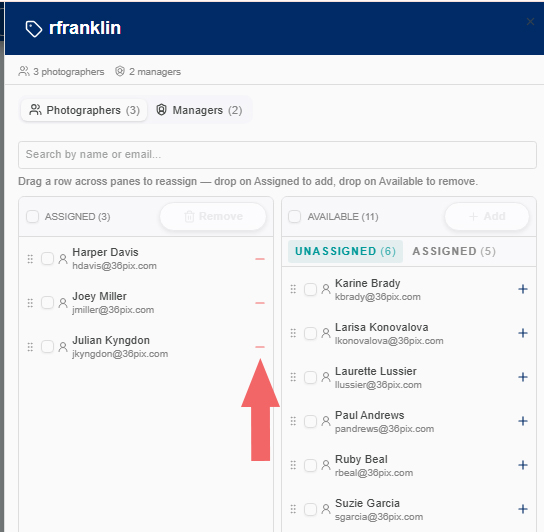
- Click, "Remove."

- To change a photographer's tag to this tag, click on the "ASSIGNED" tab in the "AVAILABLE" column.
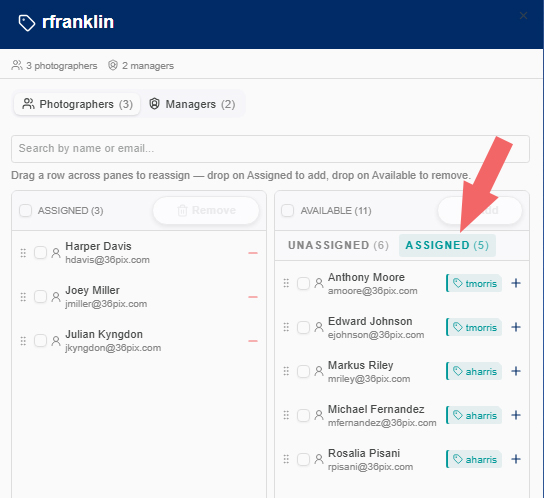
- Click the "+" sign next to the photographer you want to add to add them to the tag. The existing tag will be removed.
- Click a photographer button in the row of the manager tag you want to remove or add a photographer to.
- From the photographers settings page.
- Click a tag for the photographer whose tag you want to remove or change.
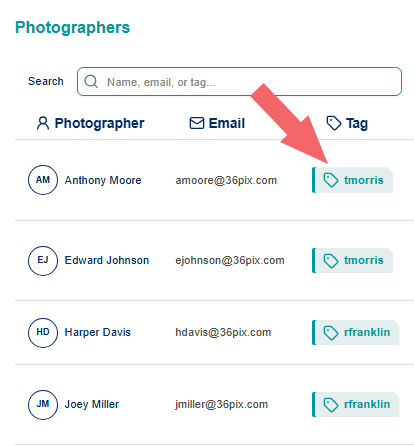
- Click clear tag to remove the tag.
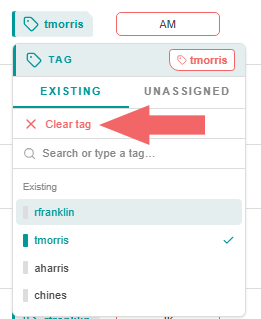
- Select a tag from the dropdown or type to choose a name for a new tag and click, "Create..." to change the tag.
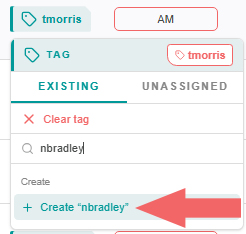
- Click a tag for the photographer whose tag you want to remove or change.
- From the managers settings page.
Removing and changing image tags (image-based assignment).
- From the image gallery.
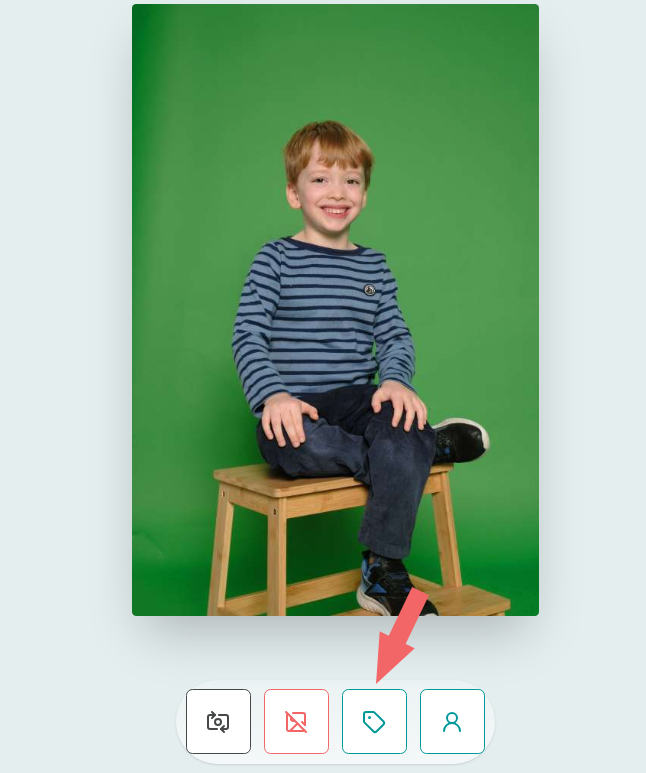
- Click on an image.
- Click the tag icon below the image.
- Click, "Clear tag" to remove the tag.
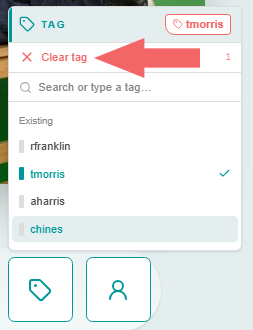
- Select a tag from the list or type and click "Create..." to change the tag.
- To clear or change multiple tags at once, enter selection mode and select the images.
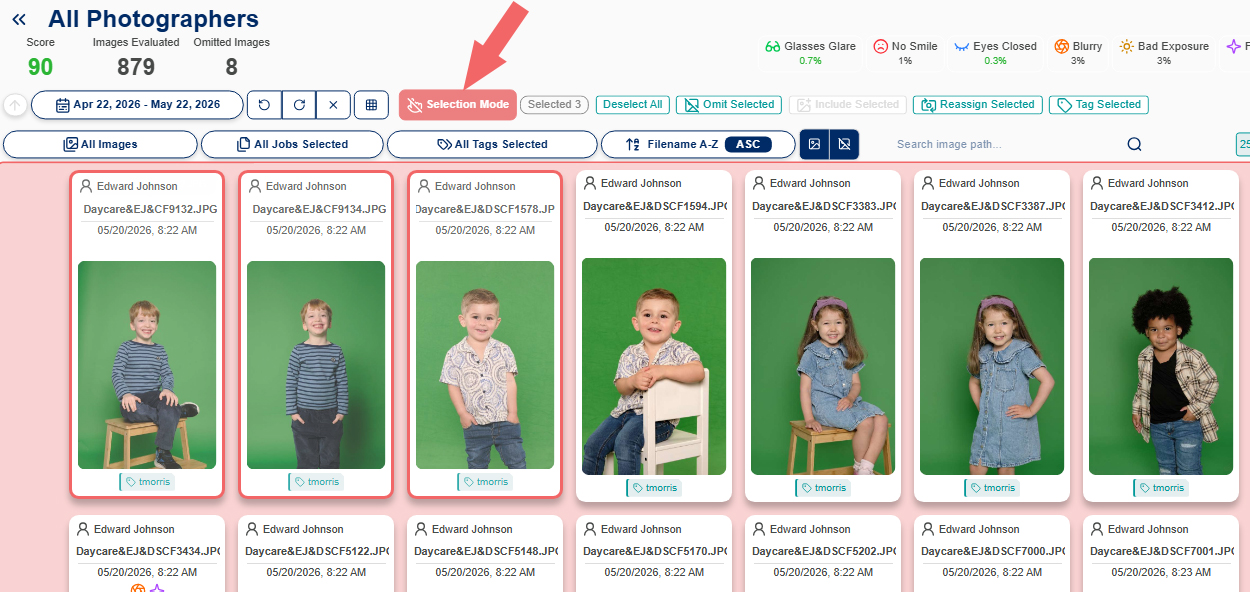
- click, "tag Selected."
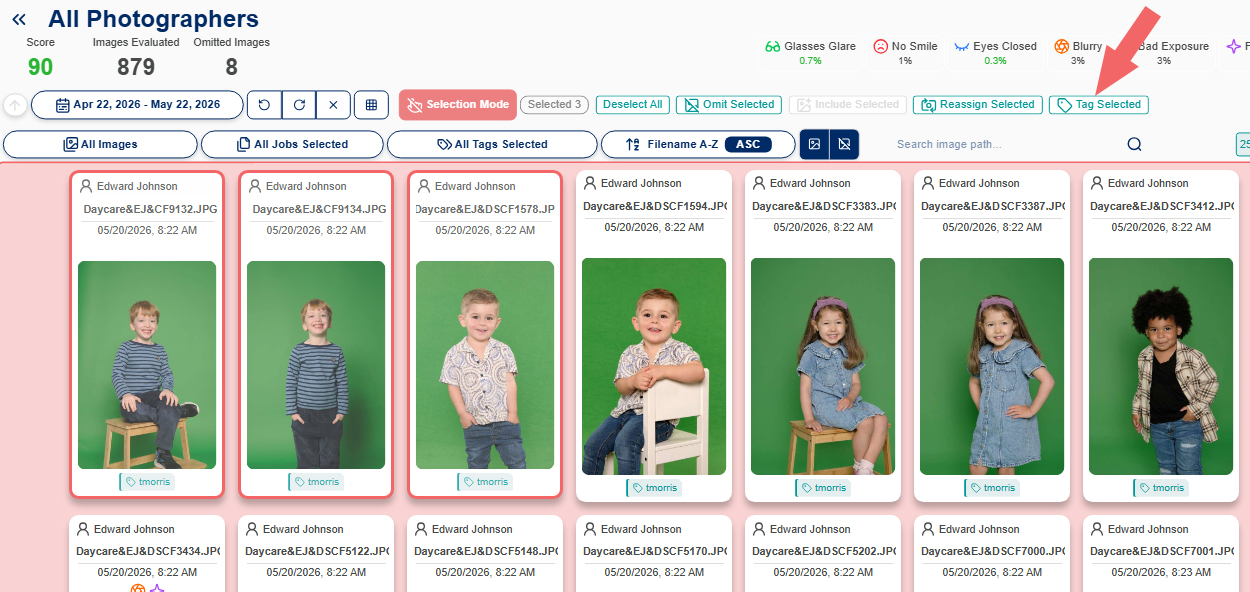
- Click, "Clear tags from..." to remove the tags.
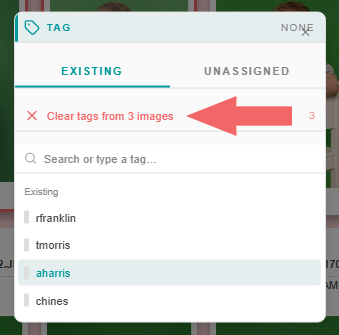
- Select a tag from the list or type and click, "Create..." to change the tag.
- From the dashboard.
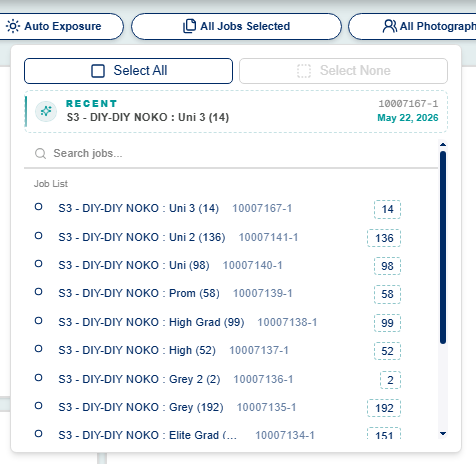
- Click the job filter to view the list of jobs.

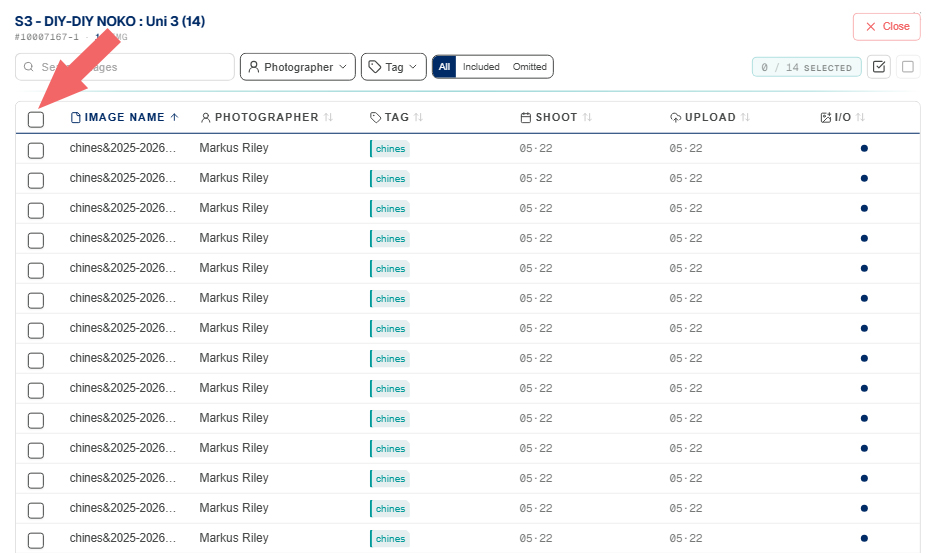
- Right click the job containing the images you want to remove or change the tags for.
- On the pop-up, click the first check box to select all images, or just select the images you want one-by-one.
- Click the tag button that appears once images have been selected.
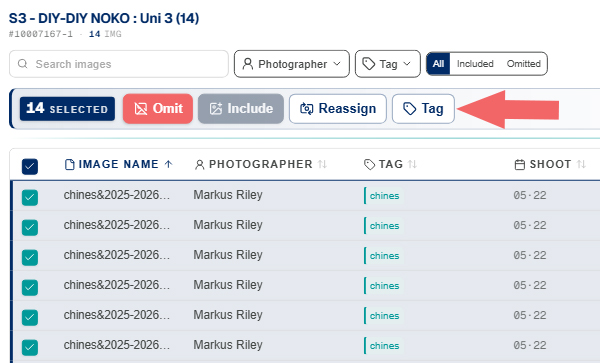
- Click, "Clear tags from..." to remove the tags.
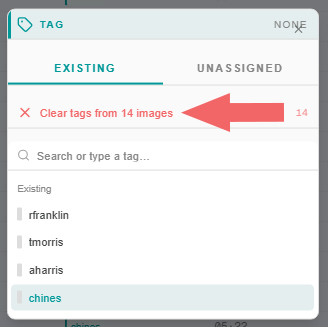
- Select a tag from the dropdown or type to choose a name for a new tag and click, "Create..." to change the tag.
- Click the job filter to view the list of jobs.
- From the image gallery.