How to Use the Gallery
Print
Modified on: Mon, 13 Apr, 2026 at 4:10 PM
TABLE OF CONTENTS
The image gallery displays all images evaluated by EVA from every photographer.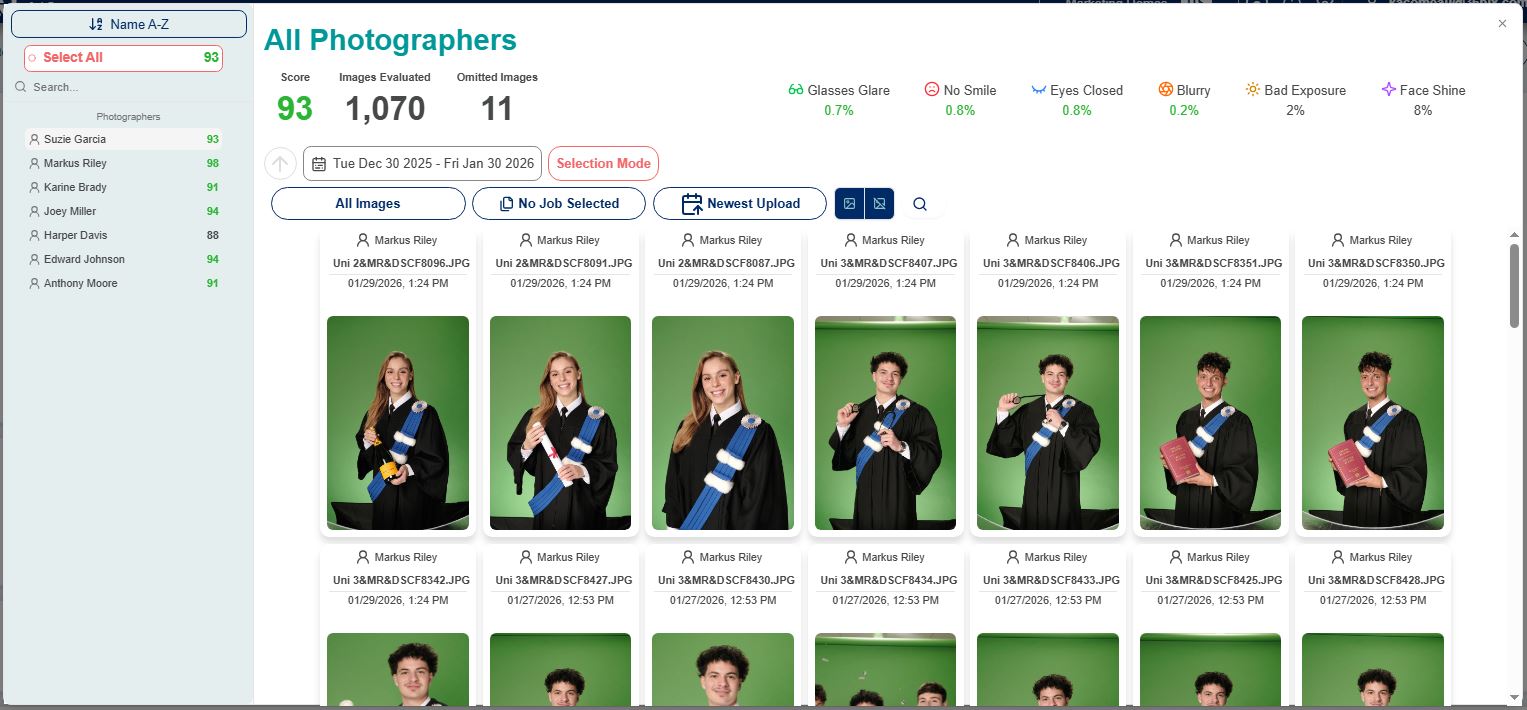
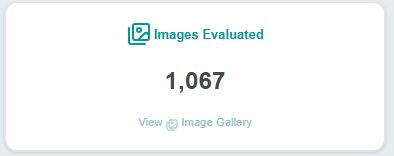
To access the image gallery, click on the Images Evaluated section on the dashboard.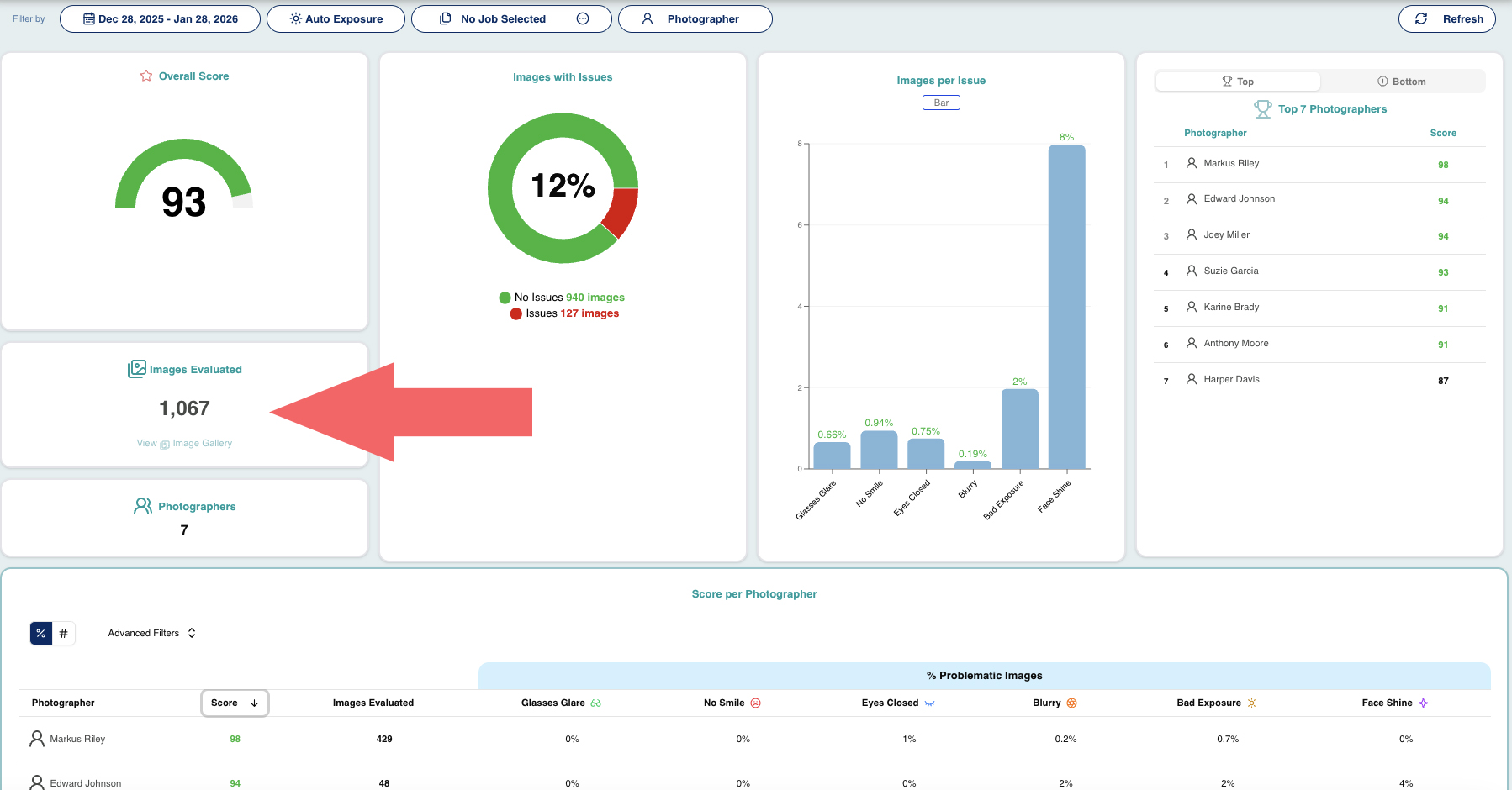
- Clicking a number in the Score per Photographer section will also open the gallery displaying the images for a specific photographer.
Displayed at the top of the image gallery are the following:
- The overall score.
- The number of images evaluated.
- The number of images omitted.
- Omitted images are not counted towards the score.
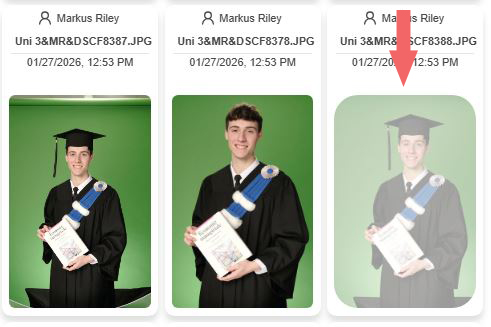
- Images with QR codes or no face are omitted automatically and will appear greyed out.
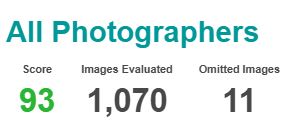
- The percentage of problematic images per issue.

The images containing issues will be identified by one or more issue icons.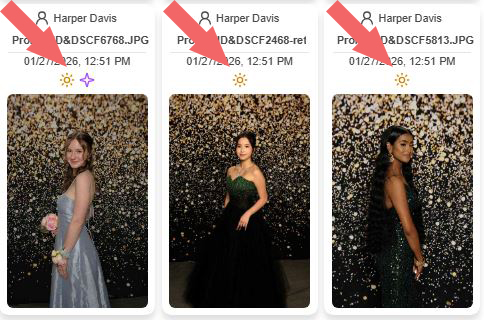
Apply a filter to more quickly and easily view the images with issues.
Click on the image filter ( All Images are shown by default).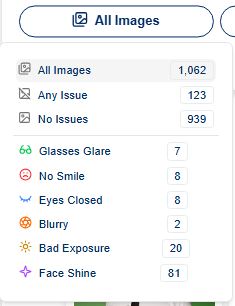
- Any issue.
- View only the images containing issues.
- No issue.
- View only the images containing no issues.
- Filter by issue.
- Click one issue at a time to view images containing only that issue.
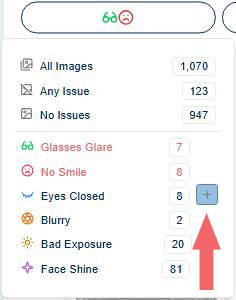
- Click the + next to an issue in the filter dropdown menu to view the images with multiple selected issues at once.
- Clicking a photography issue at the top of the page will also filter the images by issue. Click the issue a second time to undo the filter.

Click an image to enlarge it and get a closer look or to see more image details.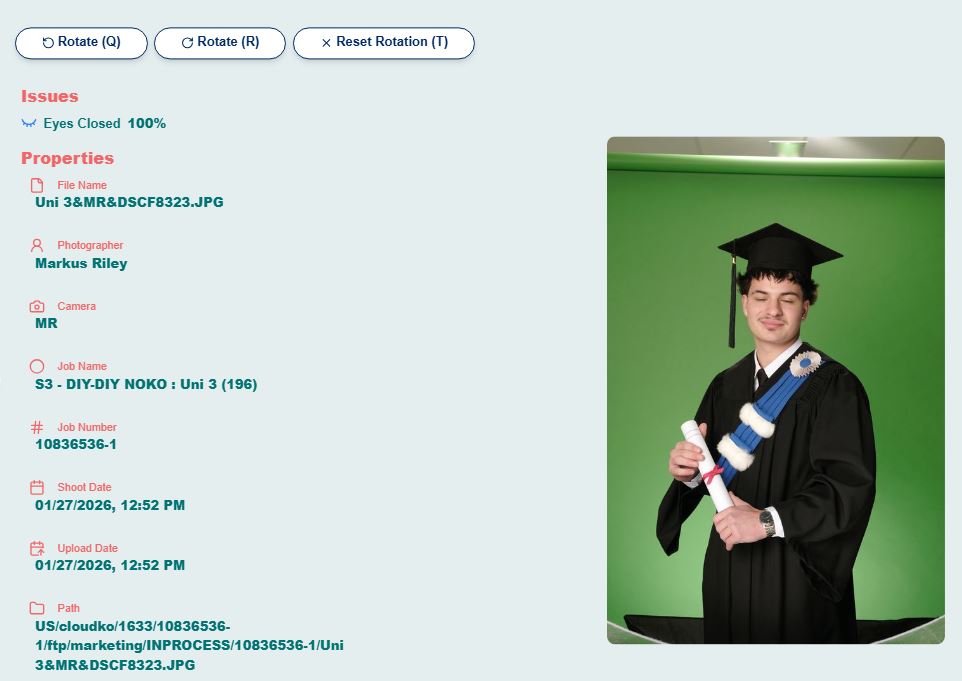
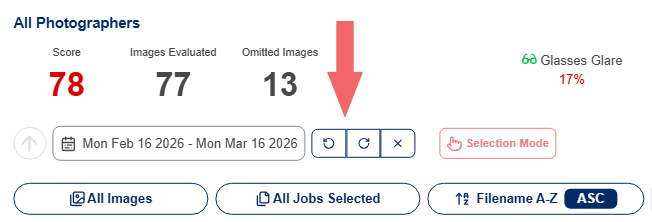
- Images can be rotated by clicking one of the rotate buttons.

- Reset the rotation by clicking the Reset Rotation button.
- Flip through the images in this view mode by clicking the arrows to the left or right of the window or using the left and right arrow keys on your keyboard.

Filter by job.
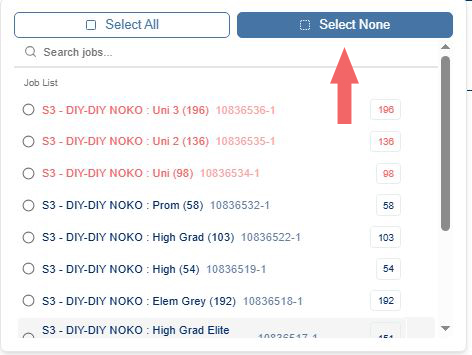
Click the job filter (No Job Selected is chosen by default) to filter the images by job.
- Click a job to view only the images in that job.
- Click the + next to a job name to view images in multiple selected jobs.
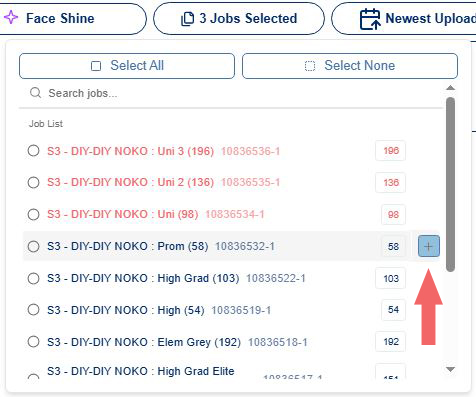
- Click Select None to undo the filter.
Rotating images.
- Depending on your image's exif data, an image may not appear upright in the gallery, so you can click the rotate button. This will rotate all images in your organization during your session. This is only a view-mode and will not change the exif data of your images. Other users within your organization will not see the rotation, only the user who clicked the rotate button.
Viewing omitted images.
- Omitted images appear greyed out in the image gallery.
To view only the images omitted, click here:
To view only the images that have not been omitted, click here:
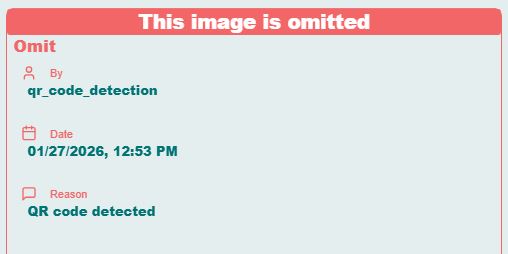
- Clicking an omitted image will enlarge it and display details about why the image was omitted and if it was done by EVA automatically or an admin user.
To include an omitted image in the score:
- Right click on an image and click here:
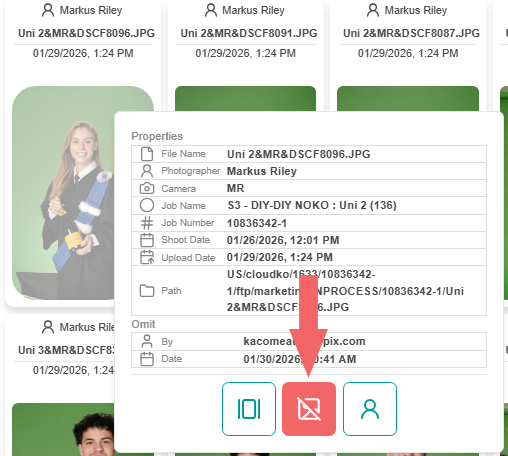
- To select multiple omitted images at once to include in the score:
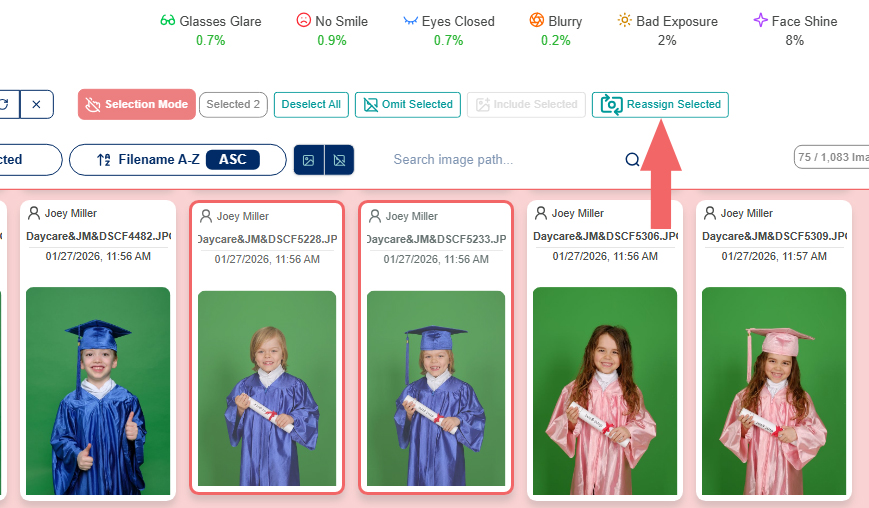
- Enter selection mode by clicking the Selection Mode button.

- Click the images you want to remove from the omitted images and include in the score.
- Click Include Selected.
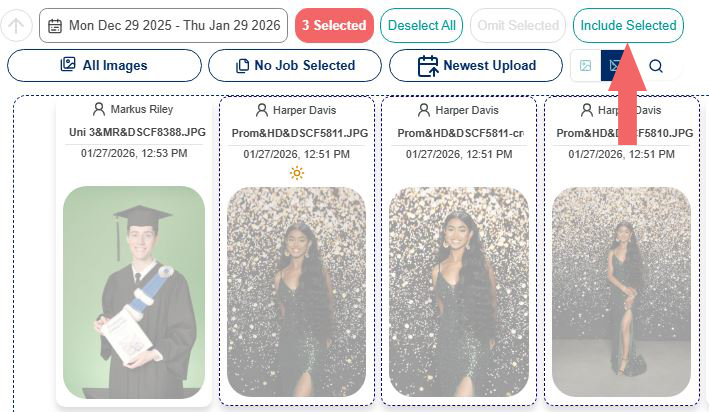
To omit an image manually:
Right click on an image and click here: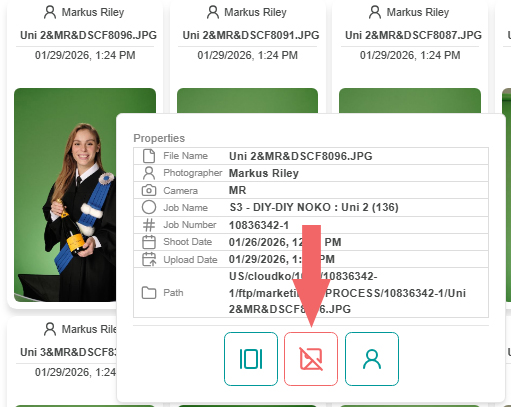
- To omit multiple images at once:
- Enter selection mode by clicking the Selection Mode button.

- Click the images you want to omit and exclude from the score.
- Click Omit Selected.
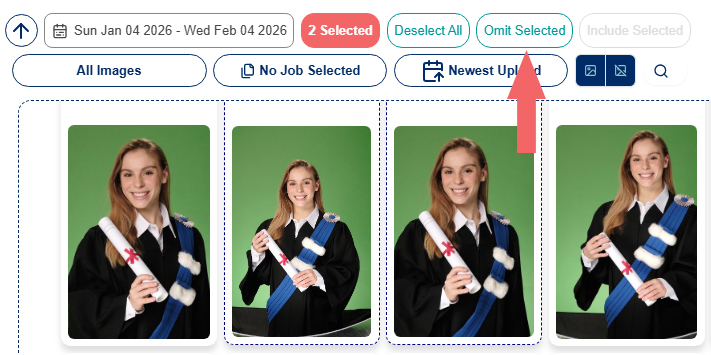
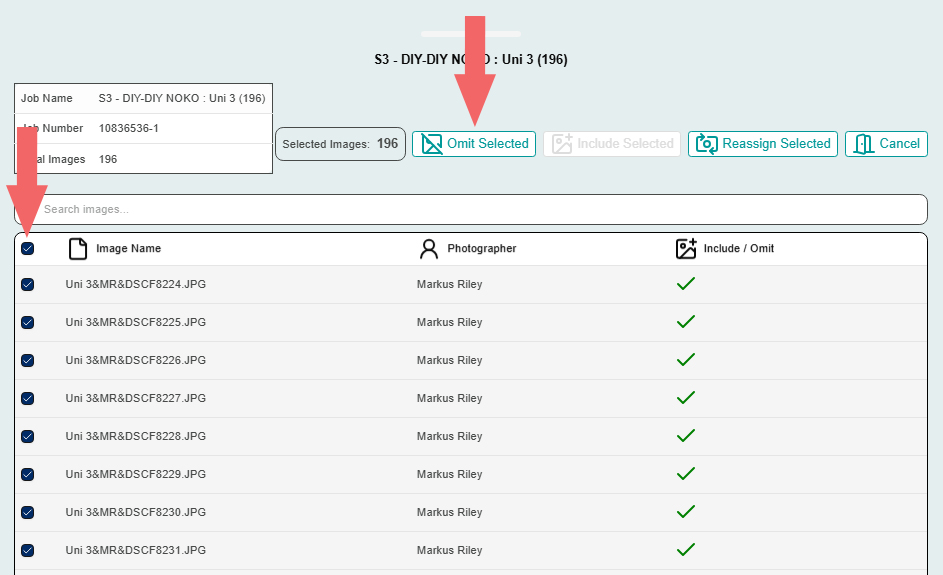
To omit or include an entire job:
Right click a job in the job filter in the gallery.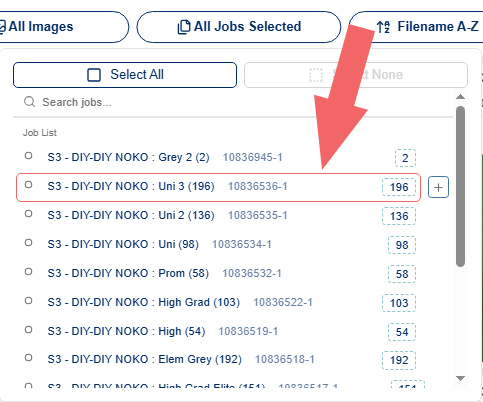
- Select all or some of the images in the job, then click omit selected or include selected.
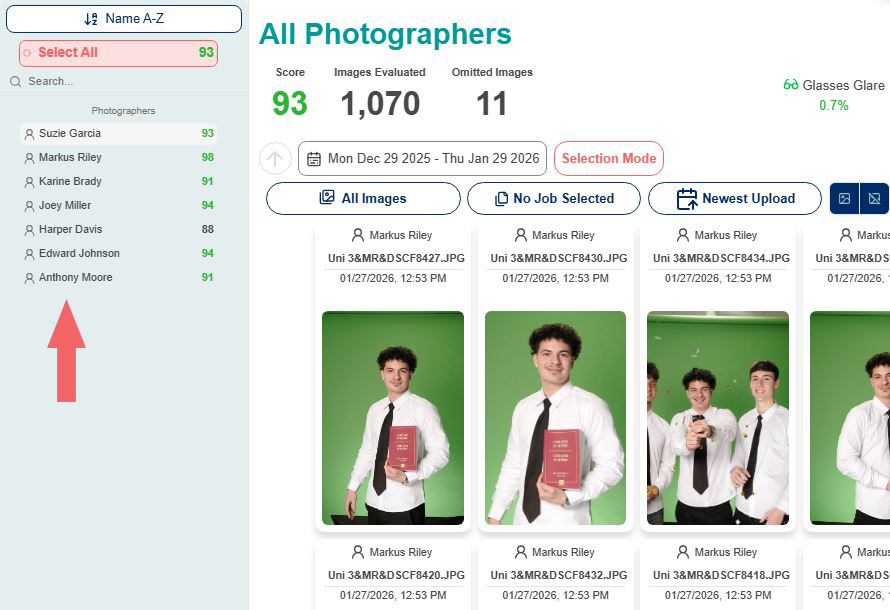
Viewing only the images taken by a specific photographer.
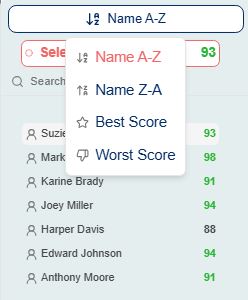
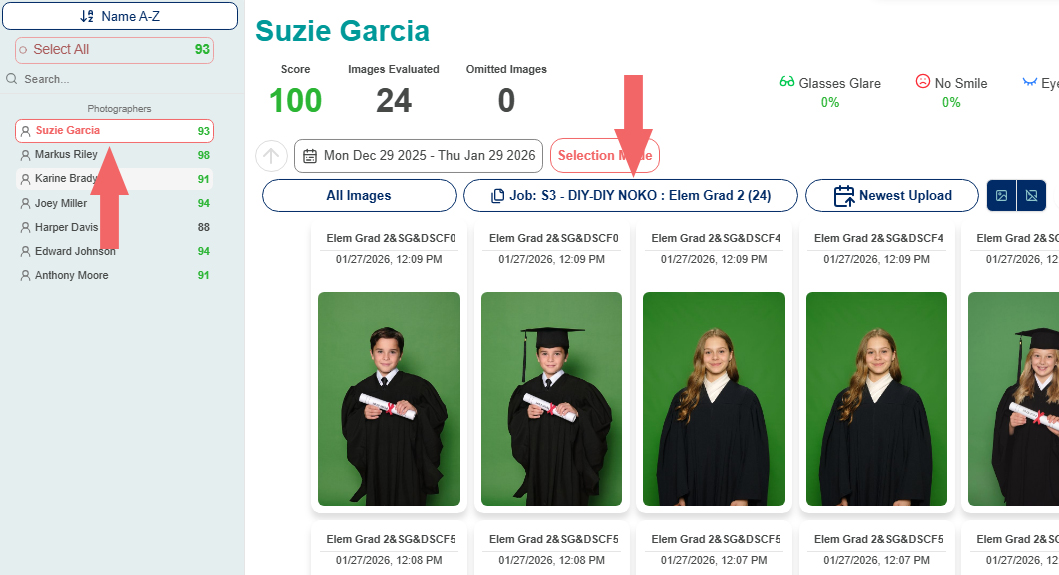
- Click a name from the photographers list on the left of the gallery.
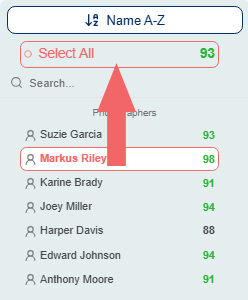
- Click Select All to clear the filter.
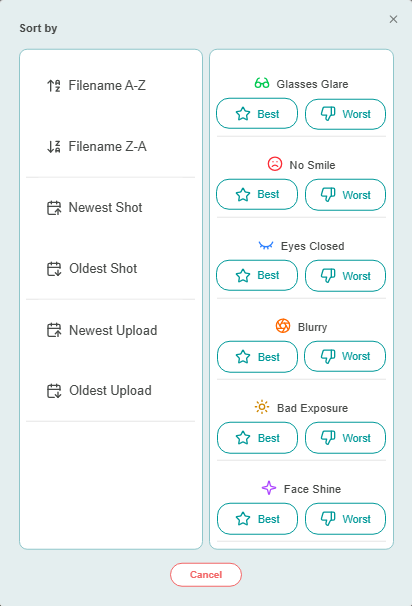
- You can sort your list of photographers by name alphabetically or by score.
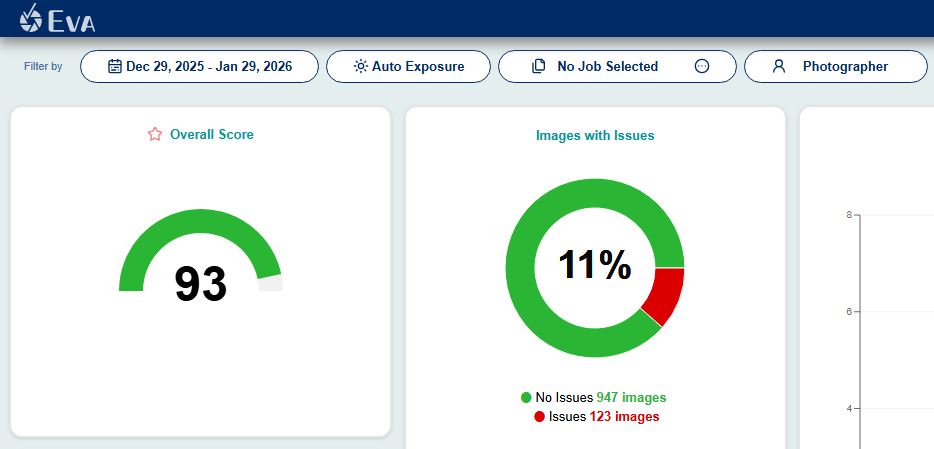
Changing a filter in the gallery does not change the filters in the dashboard. When you close the gallery, your dashboard filters will remain as you left them.
- Example- Photographer and job filters applied in the gallery.
- No filter has been applied on the dashboard.
Reassigning images to a different photographer.
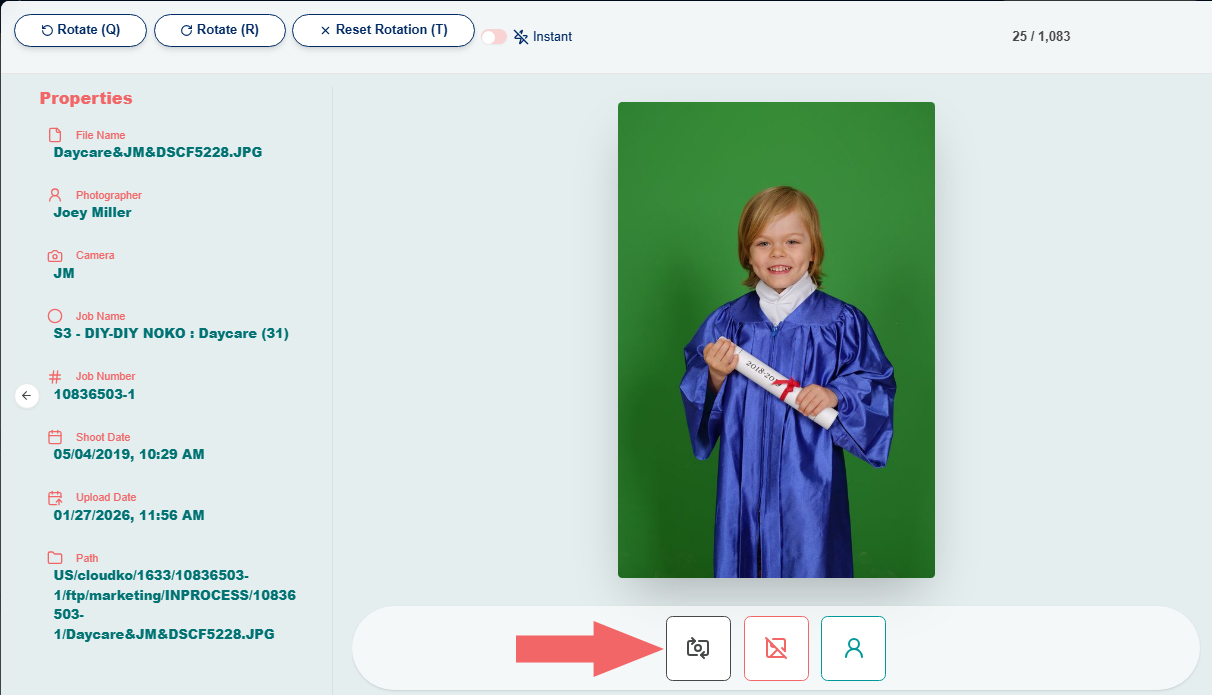
Reassigning images by clicking the reassign icon.
- Right click an image and then click the reassign icon.
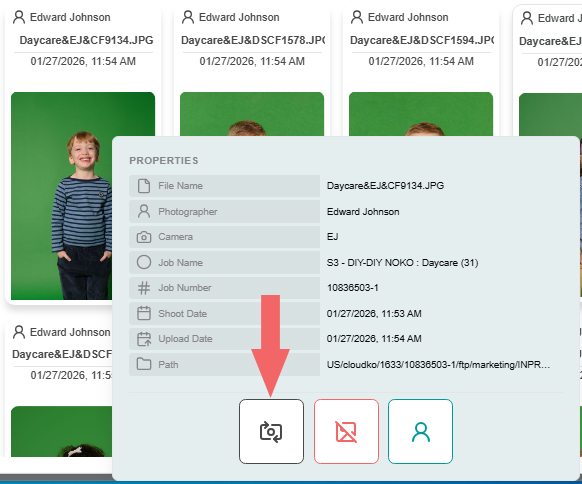
- Or click the icon while viewing the images in carousel mode.
Reassigning images while in selection mode.
- Enter selection mode and select the images, then click, reassign selected.
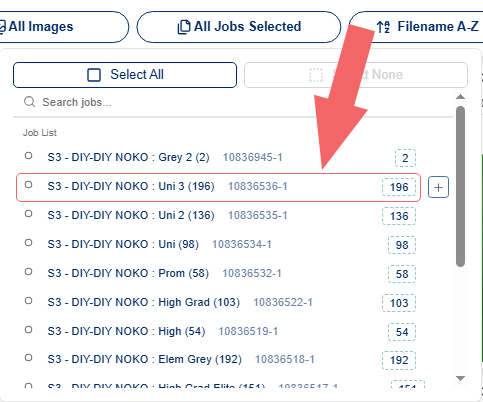
- Reassigning images by right clicking a job in the job filter in the dashboard.
- Right click a job in the job filter.
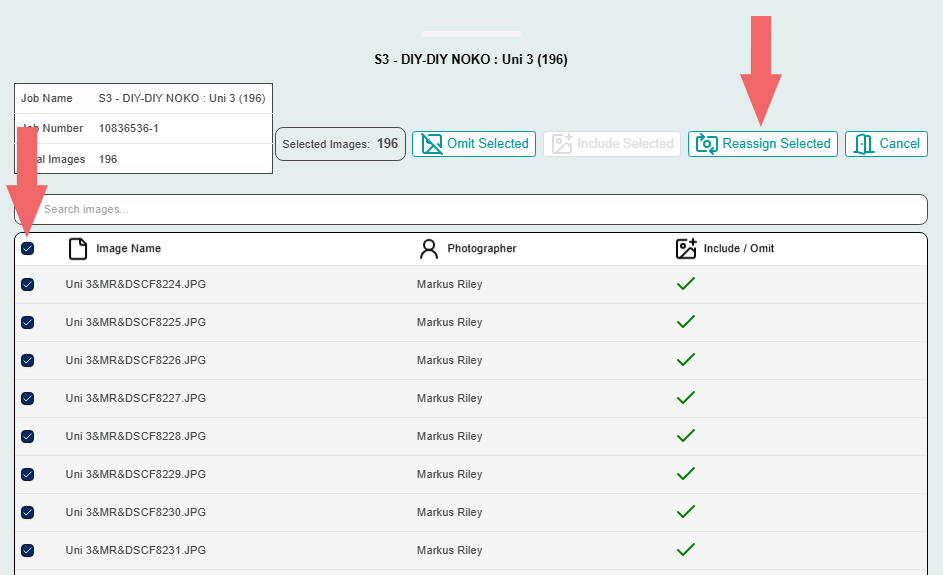
- Select all or some of the images in the job, then click reassign selected.
Did you find it helpful?
Yes
No
Send feedback Sorry we couldn't be helpful. Help us improve this article with your feedback.