TABLE OF CONTENTS
- Dashboard overview.
- Dashboard Filters
- Overall score.
- Images with Issues.
- Images per issue.
- Top/Bottom Photographers.
- Images Evaluated.
- Score per Photographer.
The dashboard is the first screen you see after logging in to EVA. It contains each photographer’s score and a clear breakdown of image quality issues by percentage.
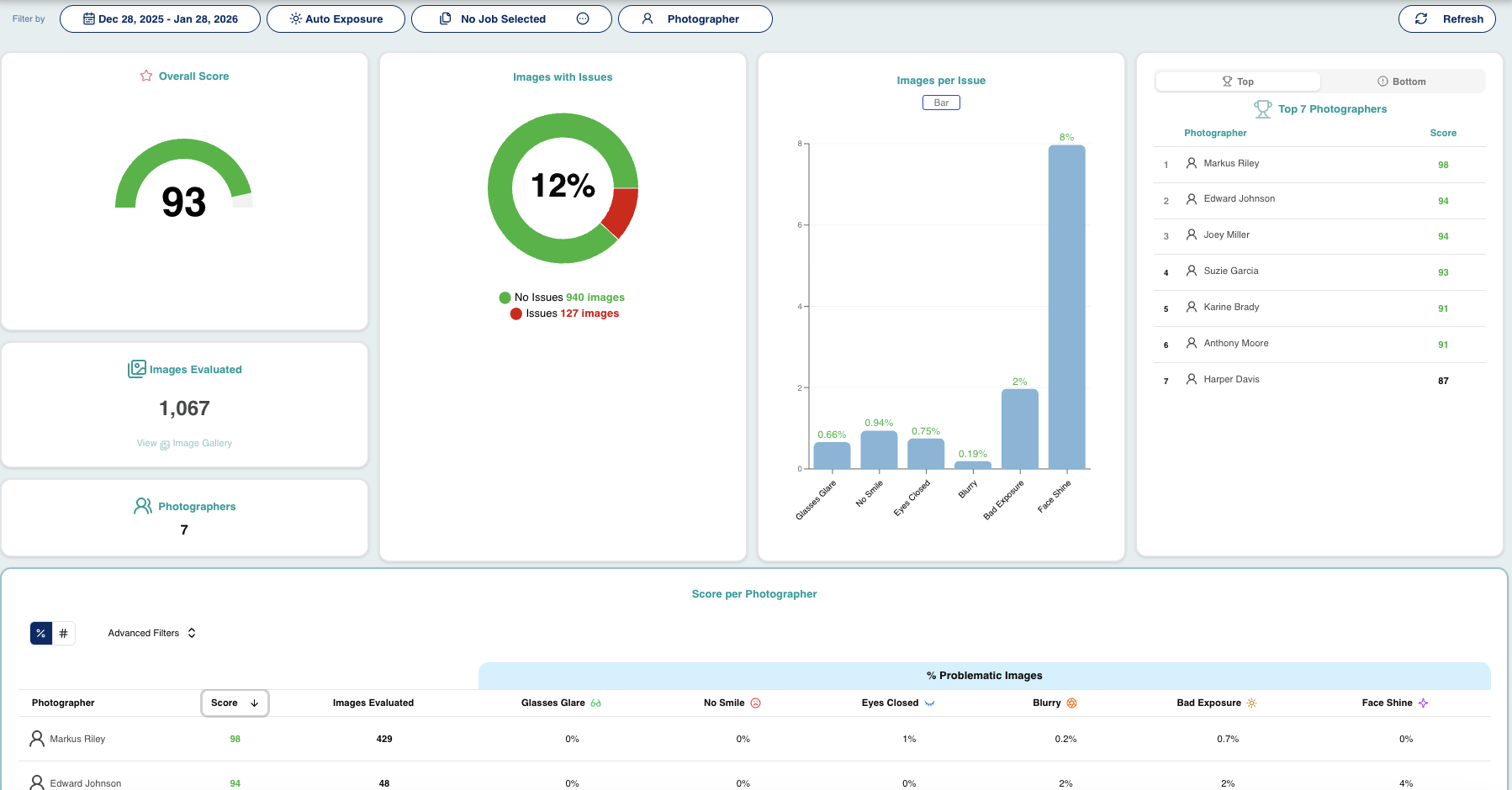
Dashboards can be filtered by date, exposure, job or photographer.

Date filter.
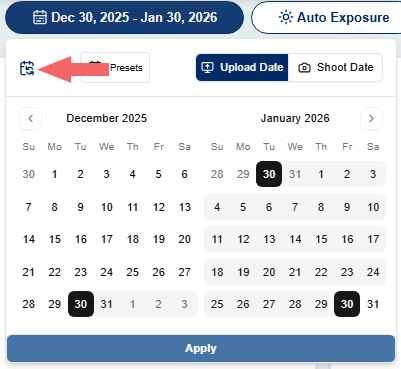
- Click the date filter, which by default, shows the images uploaded in the last month.
- You can choose a preset filter by clicking Presets and selecting an option from the dropdown list.
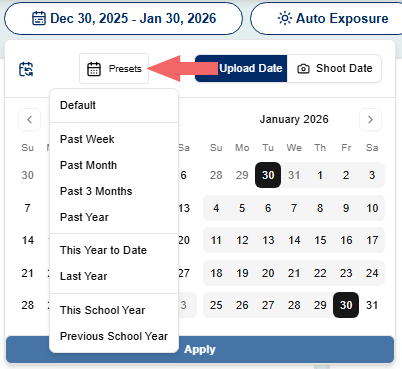
- A custom date range can also be selected by clicking the dates in the calendar.
- You can also decide if you want to use the date the images were uploaded into Eva, or use the shoot date which EVA gets from the image’s exif data.
Click here to return to the default date filter:
Exposure filter.
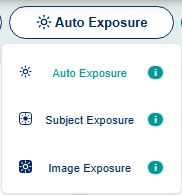
- Subject exposure takes just the subject into consideration when scoring the images’ exposure. This should be used in cases where the background will be removed, like with green or grey screen images.
- Image exposure is for natural light images, where the exposure of the entire image is taken into consideration when scoring.
- Auto exposure means EVA auto detects which score it should use.
Job filter.
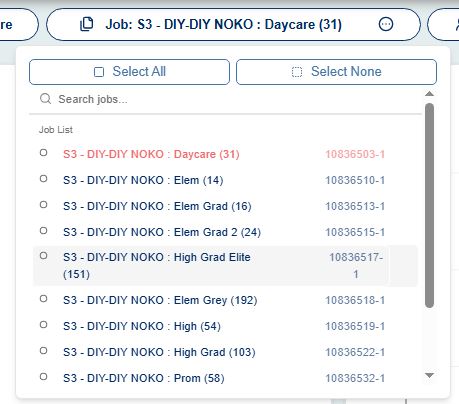
We can filter to view only one job at a time, by clicking the job name in the dropdown.
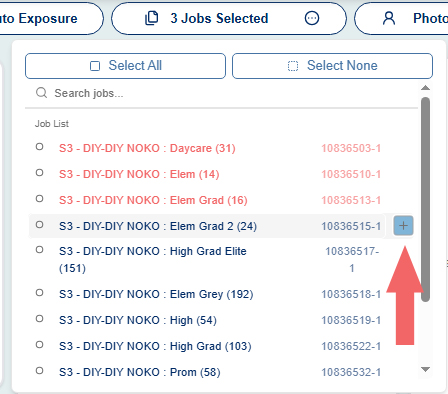
A number of jobs can be selected at once by clicking the + next to the job names on the list shift+clicking to select a batch in a row.
Photographer filter.
We can filter by one photographer at a time by clicking their name on the dropdown list.
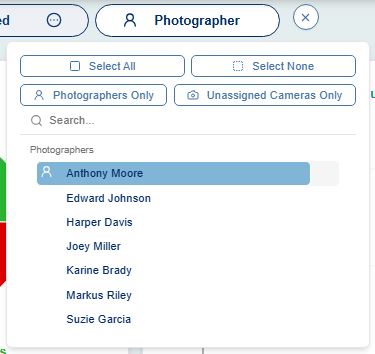
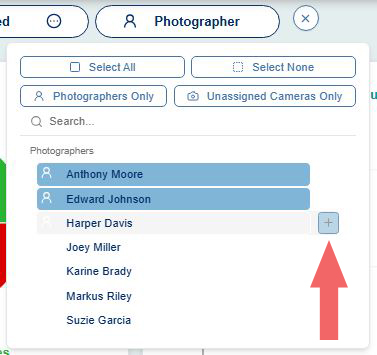
Multiple photographers can be selected by clicking the + next to the photographer's name or shift+clicking to select a batch in a row.
Click the X to clear all filters.

Overall score.
- This is the overall photographers' score of all the images evaluated by EVA. If a filter is applied, it is the overall photographer score of the filtered images.
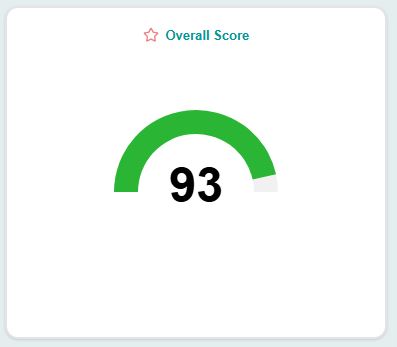
- This is the overall photographers' score of all the images evaluated by EVA. If a filter is applied, it is the overall photographer score of the filtered images.
Images with Issues.
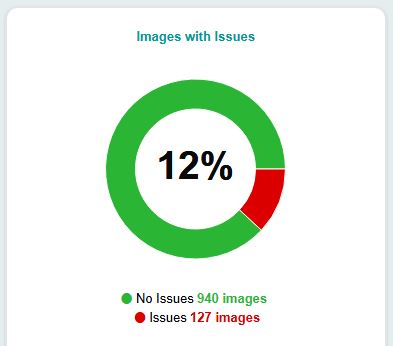
- Here the percentage and number of images with issues is displayed.
- This is the overall percentage of images with issues evaluated by EVA. If a filter is applied, it is the percentage of the filtered images with issues.
Images per issue.
- The percentage of images with issues is shown in a bar chart.
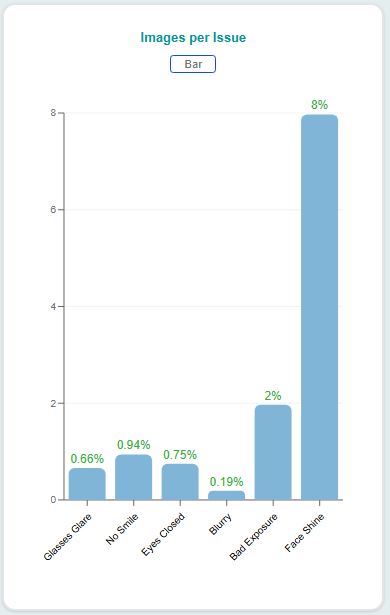
- The percentage of images with issues is shown in a bar chart.
Top/Bottom Photographers.
- By default a list of the top photographers is shown here.
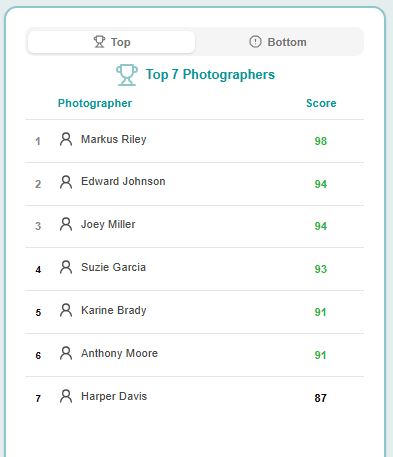
- Click Bottom to view the list of bottom photographers.
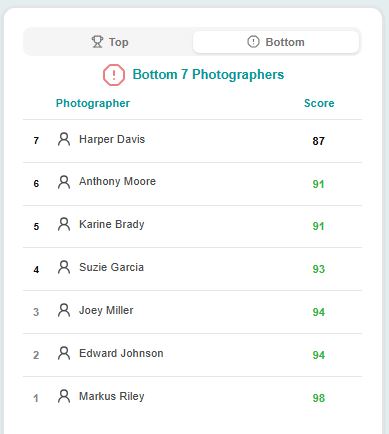
- By default a list of the top photographers is shown here.
Images Evaluated.
- This displays the total number of images evaluated by EVA. If a filter is applied, the number of filtered images evaluated is displayed.
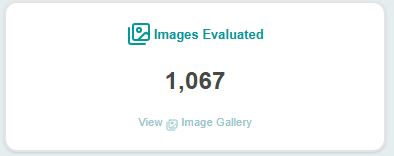
- If you hover over this section, you can also see the number of images ignored (omitted) and the number of images with issues.
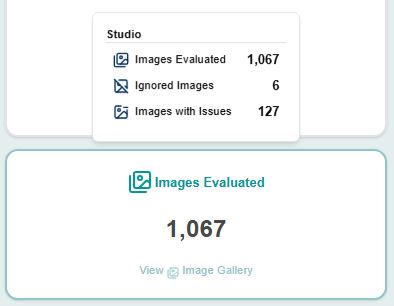
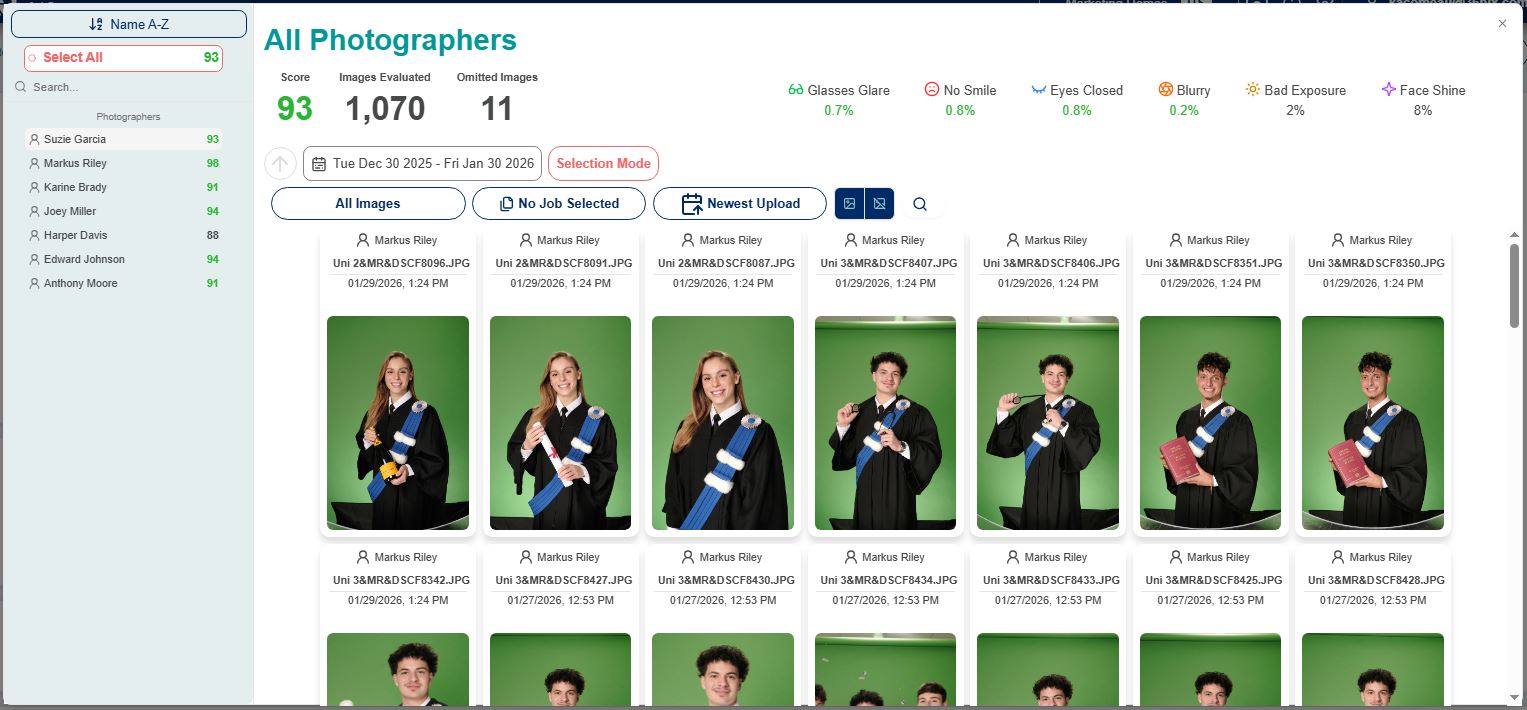
- Clicking this section will open the gallery, where you can view the images behind the numbers. Click here to learn more about the gallery.
- This displays the total number of images evaluated by EVA. If a filter is applied, the number of filtered images evaluated is displayed.
Score per Photographer.
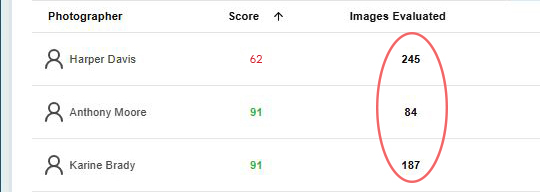
This section displays the list of photographers along with their overall scores, number of images evaluated, and percentage or number of problematic images per issue.
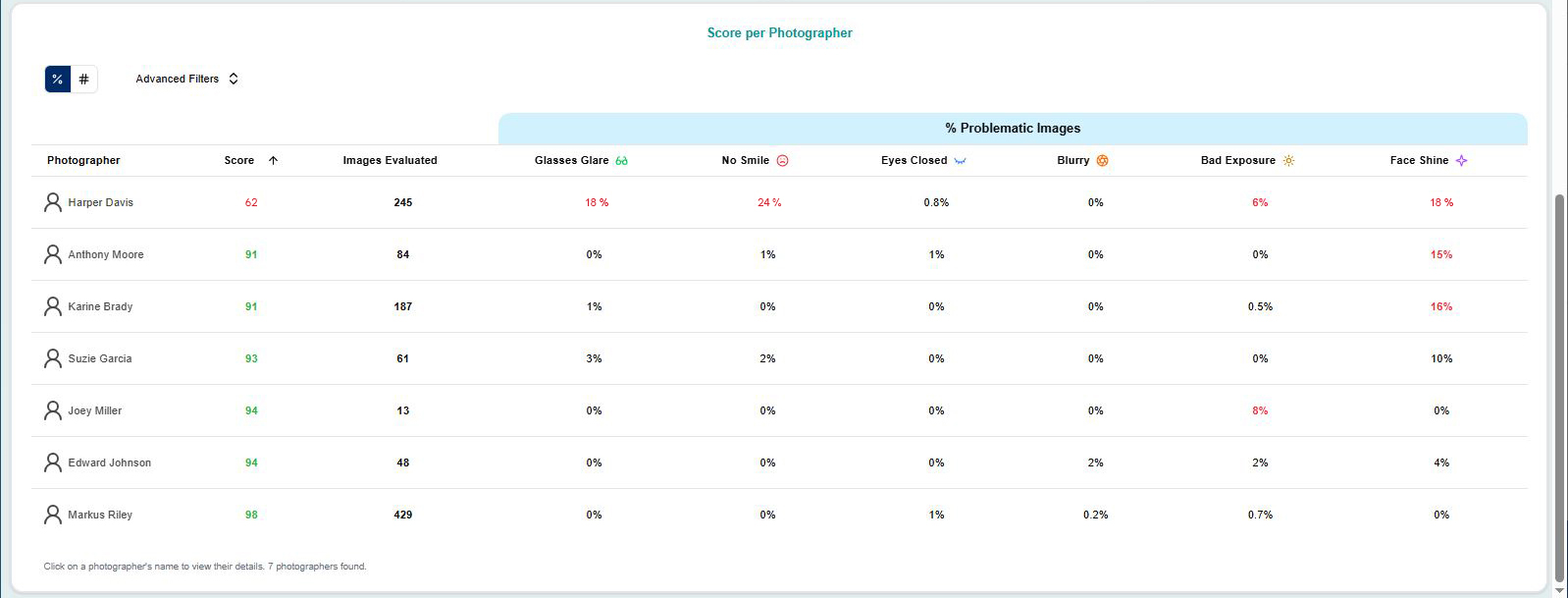
A photographer's overall score will be displayed either in red, black or green, depending on the score goals that you set for the photographers in the score settings.
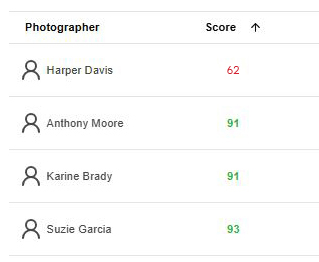
Clicking on a number in the images evaluated column, will open the gallery of images evaluated for that photographer.
The percentage of problematic images are shown per photographer. Percentages will be displayed in red if they are higher than the maximum percentages set in the problematic image goals section of your score settings.
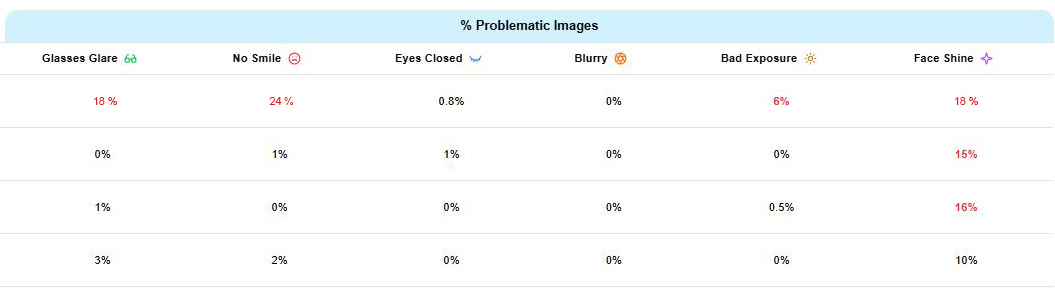
To view the gallery of images for a specific issue for a certain photographer, click the percentage under the column of the issue you want to view.
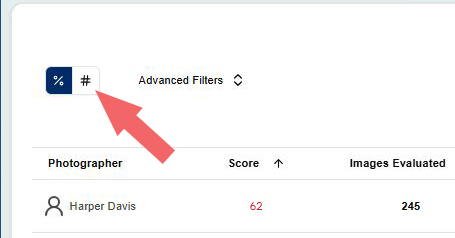
To view the number of problematic images per issue, instead of percentages, click the # at the top left of the section.
Clicking on a photographer’s name will allow you to do the following:
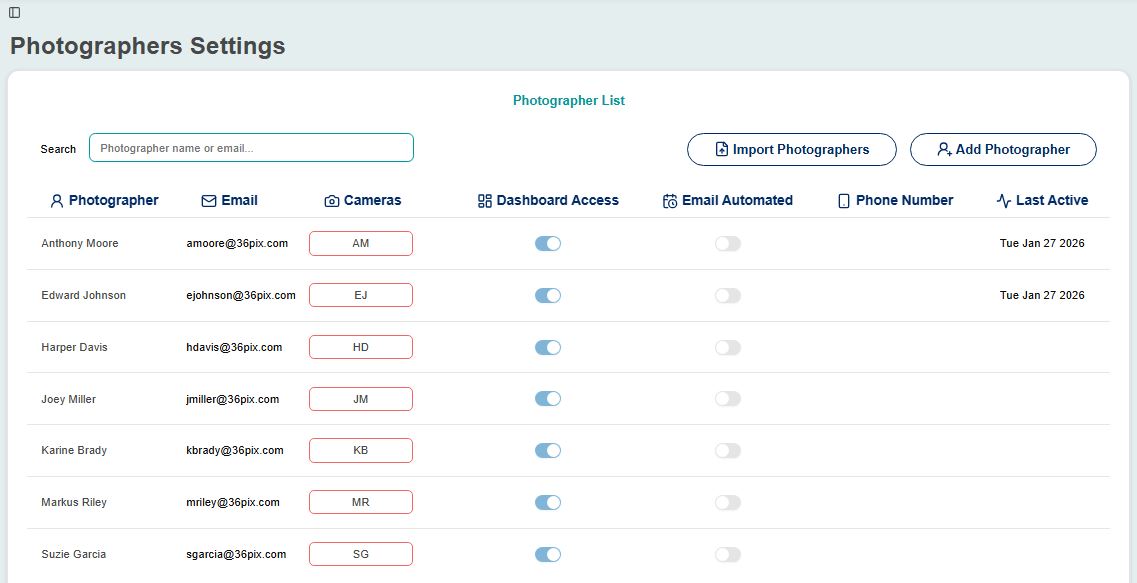
Disable or enable their dashboard access.
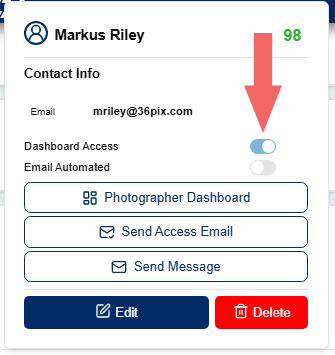
Turn automated email notifications on or off.
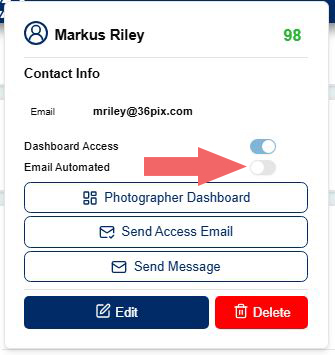
When turned on, automated emails are sent daily with a link to view the dashboard when the photographer has new images that were evaluated.
See their dashboard view.
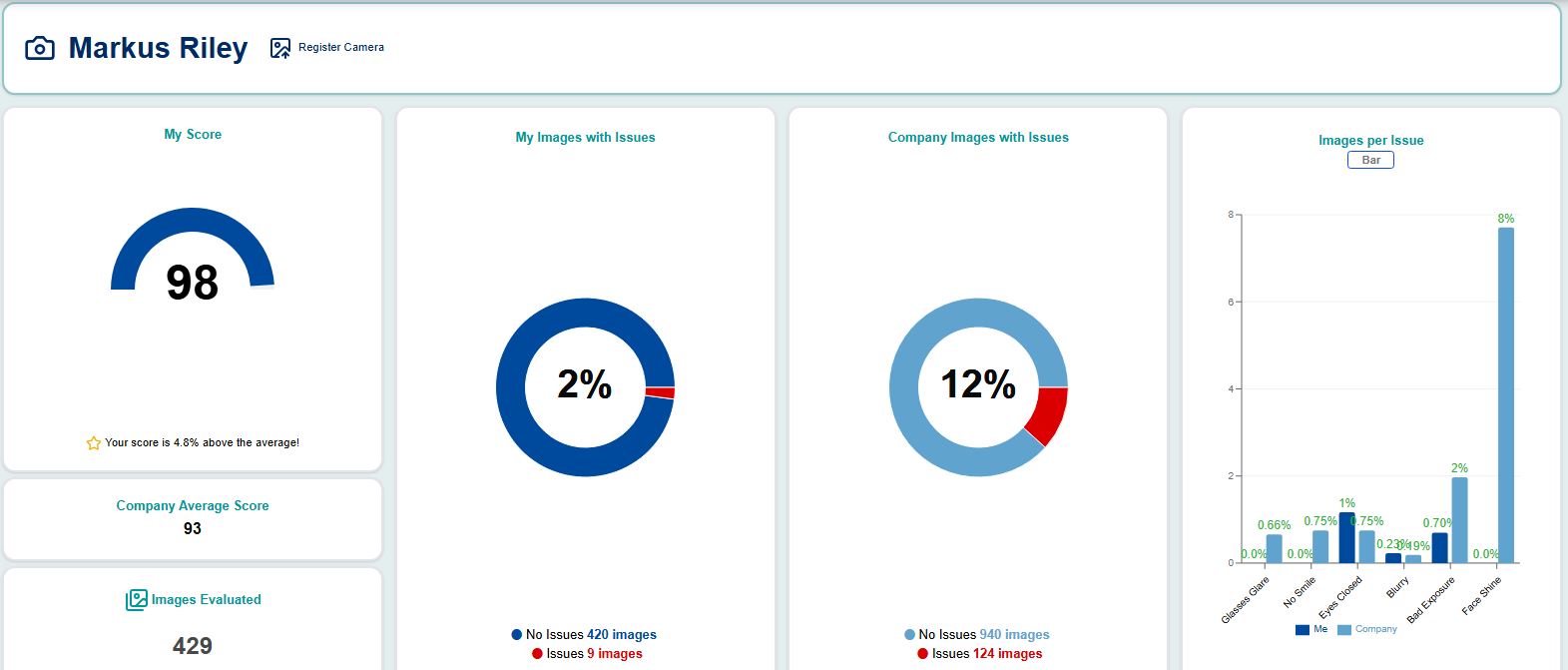
Photographer dashboards compare the photographer's score with the company average.
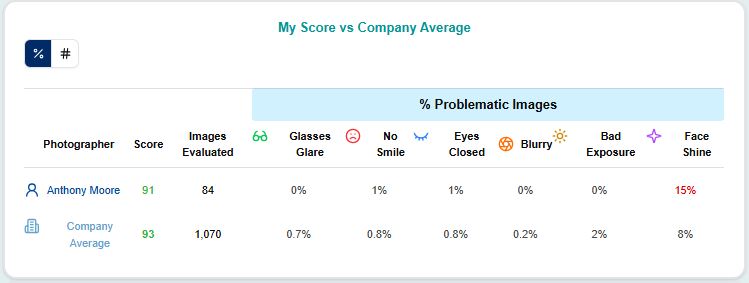
A photographer's score is compared to all jobs from the company by default.

If a photographer wants to compare their score with only the jobs they have images in, or only jobs that are selected using the job filter, click the button that reads, "Company: All Jobs." The button will appear greyed out and read, "Company Selected Jobs."

Photographers are only able to view their own images.
Send an email to the photographer giving them temporary dashboard access. Links will expire after 72 hours.
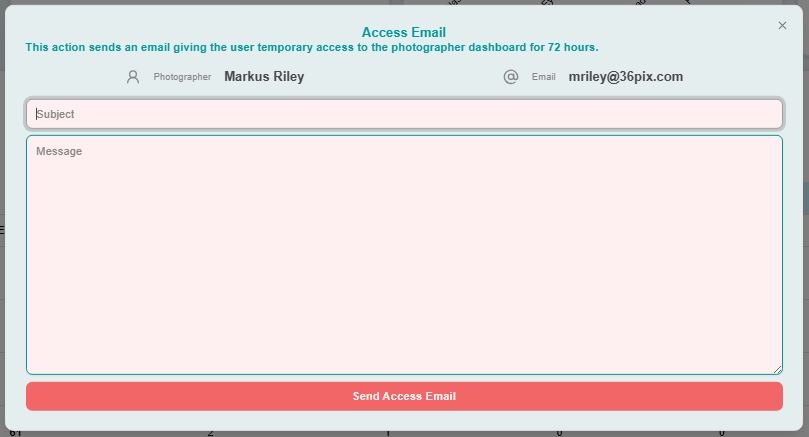
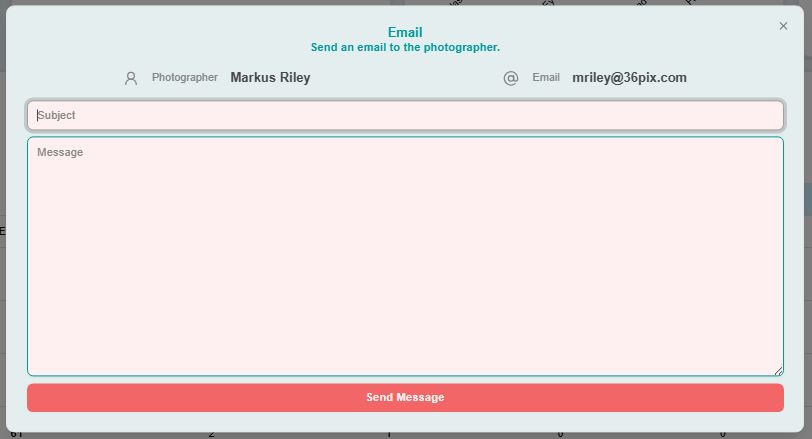
Send them a message.
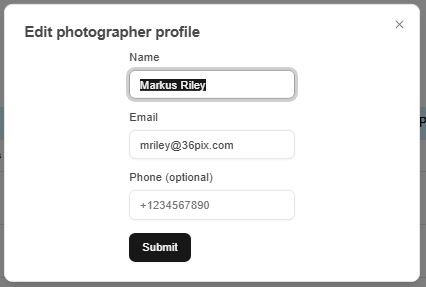
Edit their profile.
Delete them from EVA.
All these settings are also available on the photographer settings page.