
TABLE OF CONTENTS
- Access settings.
- Edit score weights and set score goals for photographers.
- Set a minimum score.
- Set a score that you would like your top performers to achieve.
- Set problematic image goals.
Click the gear icon at the top of the page to go to your settings.

Edit score weights and set score goals for photographers.
In the settings menu, click Score.
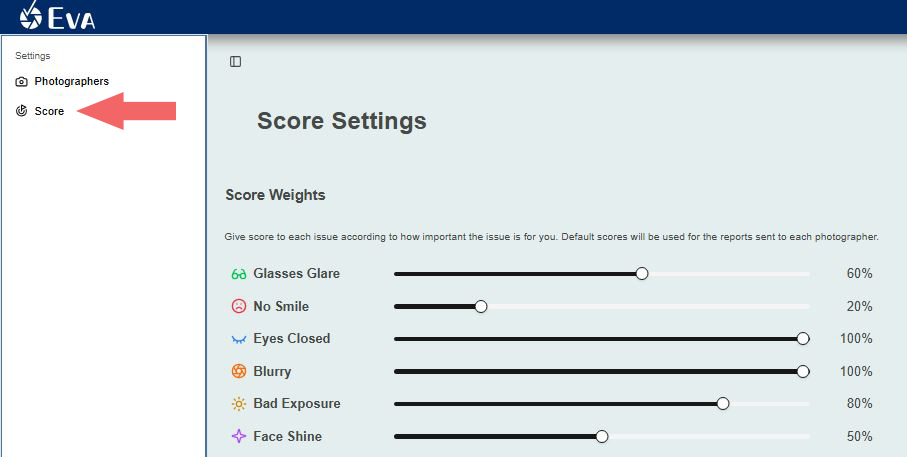
- Score weights can be set for each quality issue based on how important the issue is to you.
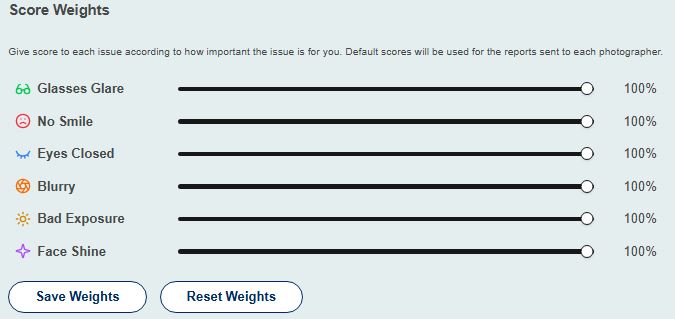
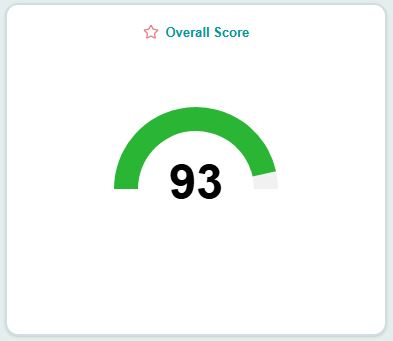
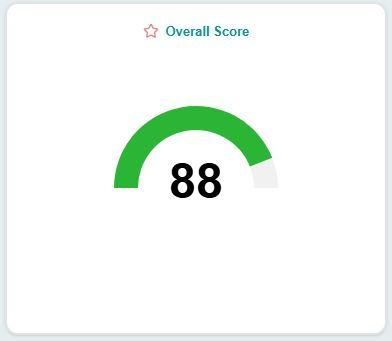
- Adjust the score weights using the sliders and click Save Weights to save the changes. If you increase the score weights, the overall score will decrease.
- Overall score using default score weights:
- Overall score with all score weights at 100%:
Set a minimum score that you want your photographers to achieve.
Enter a value in the box between 1 and 100, with 100 being the highest score and 1 being the lowest.
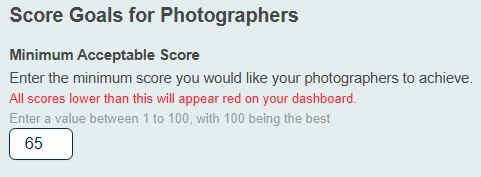 All scores lower than the minimum acceptable score will appear red on your dashboard.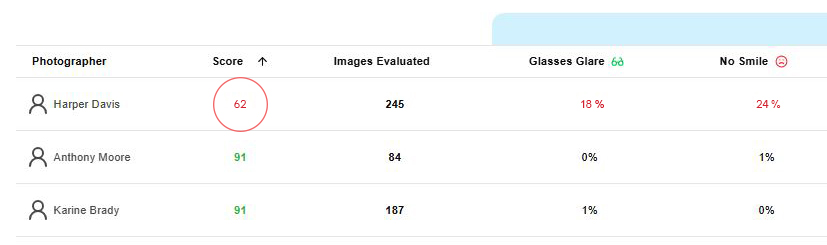
Set a score that you would like your top performers to achieve.
- Enter a value in the box between 1 and 100, with 100 being the highest score and 1 being the lowest.
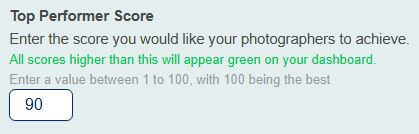 All scores higher than the top performer score will appear green on your dashboard.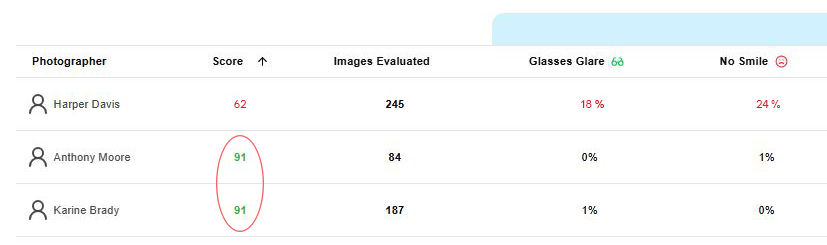
- Enter a value in the box between 1 and 100, with 100 being the highest score and 1 being the lowest.
Problematic image goals can also be set for photographers.
- In the box next to each photography issue, enter the maximum percentage of problematic images that you would like your photographers to achieve. Click Save Score Goals to save your changes.
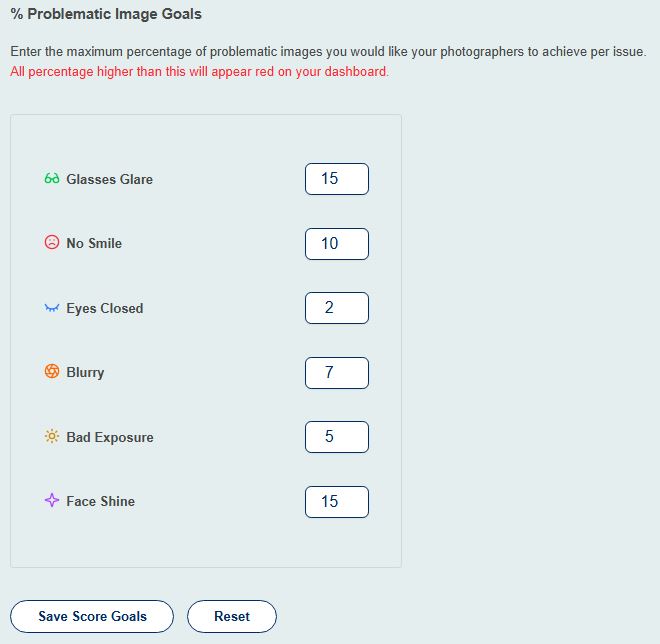 All percentages higher than this will appear red on your dashboard.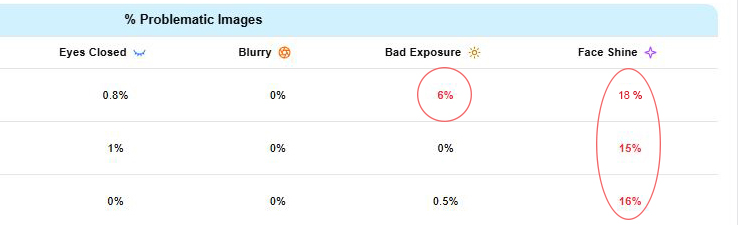
- In the box next to each photography issue, enter the maximum percentage of problematic images that you would like your photographers to achieve. Click Save Score Goals to save your changes.