
TABLE OF CONTENTS
Automatically Download Images.
- If you want completed jobs to be automatically downloaded to your computer, check "Automatically download finished jobs." Jobs will be downloaded automatically when their status becomes "To download."

- Choose a download folder on your computer.

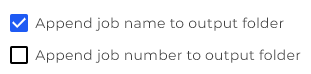
- Choose whether you want to append the job name to the output folder or the job number, or both.
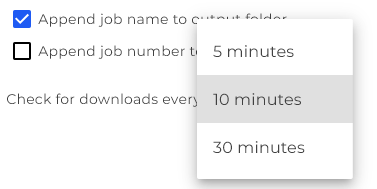
- Choose how often you want the desktop app to automatically check for jobs that are ready to download, by clicking the dropdown next to "Check for downloads every."
Auto Upload Using Hot Folders.
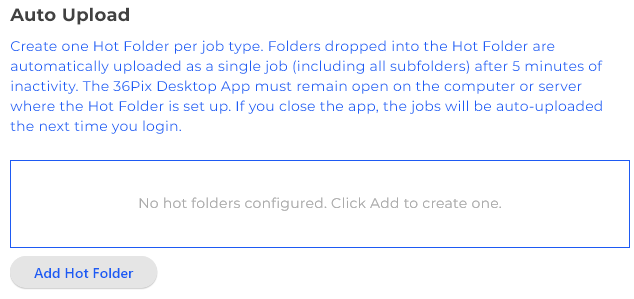
- Instead of uploading images from the job creation page, you can setup hot folders to automatically upload images to 36Pix.
- Click, "Add Hot Folder" under "Auto Upload" on the settings page.
- Click to choose a folder on your computer where you will drop the images that you want to upload to 36Pix.
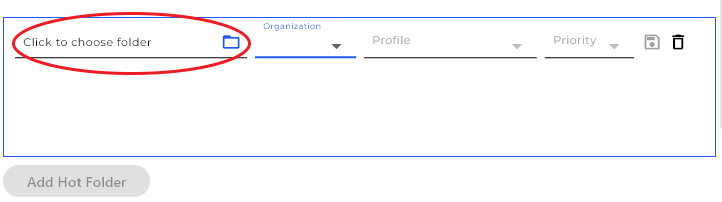
- Choose the organization that you want the images to upload to from the dropdown.
- Choose the profile you would like to associate with this hot folder. The profile is the services that will be applied to the images dropped in the hot folder. You can learn more about profiles and how to create them here.
- Choose a priority for the jobs uploaded using this folder. You can learn more about priorities here.
- Click the save icon to save the hot folder.

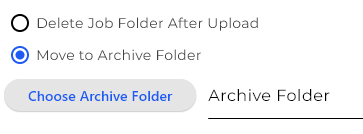
- Choose whether you want the job folder to be deleted after the job has been uploaded, or if you want the folder of images to be moved to an archived folder on your computer. If you choose to "Move to Archive Folder," you must select a folder on your computer.
- Now when a folder of images is dropped into the hot folder on your computer, the 36Pix Desktop app will automatically create a single job with those images after 5 minutes of inactivity. The 36Pix Desktop App must remain open on your computer or server where the hot folder is set up. If you close the app, the jobs will auto-upload the next time you login.
- Hot folders can be edited or deleted by clicking the edit icon (pencil) or the delete icon (trash bin) next to the hot folder's path.

Captura Integration.
- If you are a Captura user and want to exclude images based on a regex, check the "exclude based on regex" box and enter in the regex of the images to be excluded when uploading a job.

- TABLE OF CONTENTS